Tools
Parts
No parts specified.
-
-
Make sure you are on the correct job.
-
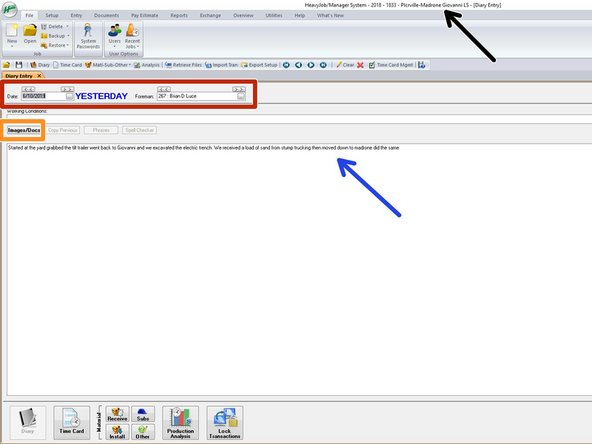
Here you can check different dates , and different Foreman's Diaries. You will have to check each one individually.
-
Here you can read the Foreman's Diary. They are supposed to have a minimum of 100 characters. We ask for a brief description of the Who, What, When, and Where the work was performed.
-
There is no approval for the Diary. We just ask that you review them and ask the Foreman to do a detailed Diary, as they are useful for personnel that are not on site, and if there are any issues in the future, we can use these notes on what happened that day.
-
This is to access pictures, Forms and inspections done that day.
-
-
-
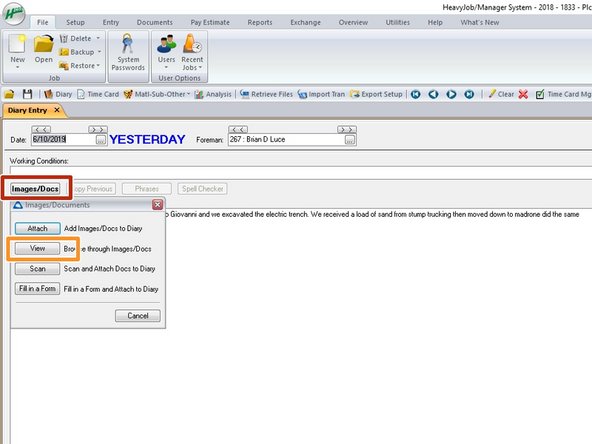
Click on Images/Docs. the fallowing window will show up.
-
Click on View to access the pictures for the day.
-
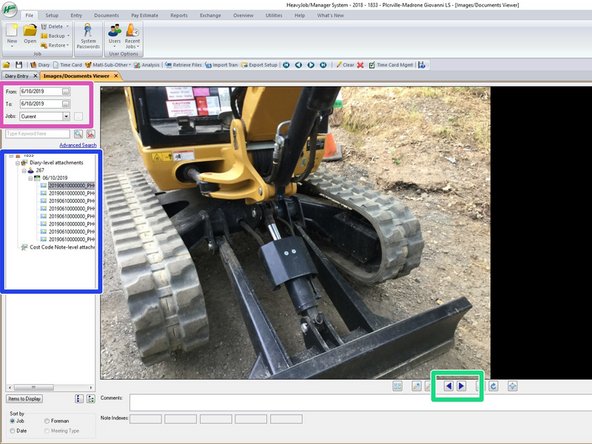
You can click on each file to display the picture or doc.
-
You can also just scroll through the pictures.
-
You can pick different time periods and use the drop downs in the Blue area to navigate pictures and docs form multiple Foreman and dates.
-
-
-
Click on the calender on the left side of the screen.
-
Here you can see that all pictures show up as thumbnail, and you can look at them individually or all at the same time.
-
You also have the ability to check off the ones you want. Just click the checkbox of the pictures you want to print or send.
-
Only do a few photos/docs at a time as the email will not support the MB's for the picture. Maybe three at a time.
-
Once you check off the picture/docs you want, click the email selected at the bottom right side of the screen.
-
Now you just need to input the email you want to send the pictures to. You can also write in more of a description on the email if you are sending to someone else.
-
-
-
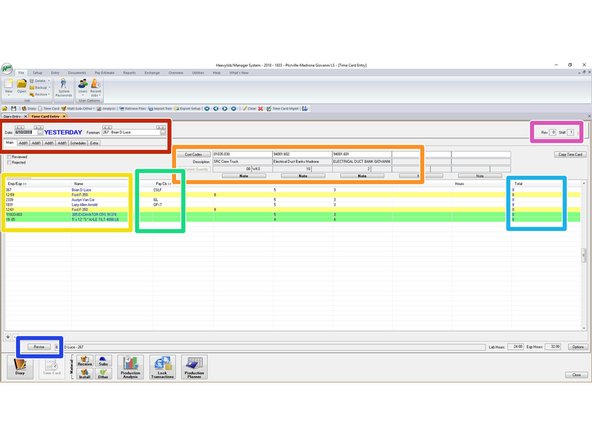
Clicking on the Time Card button at the bottom or on the bar at the top will send you to this window to review the time cards. Make sure you are on the Main Tab where you see all the tabs on this window.
-
Make sure you are on yesterdays time, and looking at the correct Foreman.
-
If you have multiple Foreman on the same job, you will have to review their time individually. You can do this by clicking the << >> arrows on top of the Foreman Name and #.
-
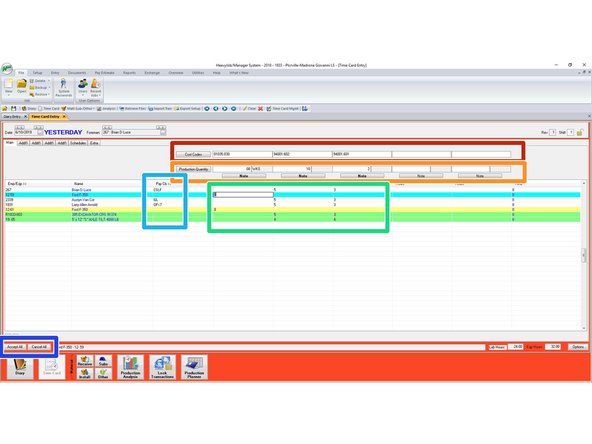
Here you can see what cost codes they are using. Here you will review that they are using the correct Cost Code. You also need to confirm they are entering in accurate Qty's. This is required by the Foreman. You can also review their notes. Every cost code need a note and qty.
-
Notes on each Cost Code, about what was done/completed on that cost code. Also information like problems encountered on the task. What subs, equipment, or services were used on the cost code. Trucking, Concrete, Pumps, Etc.
-
Here you will review that they have all the employees and equipment that are on the job site, even if on standby, it needs to be on here. If its not in heavy job, the shop doesn't get paid for it.
-
Confirm that they are using the correct pay classes for each employee on you project.
-
See revised Time Card Step 8.
-
-
-
The Schedule tab is where you will review the crews schedule.
-
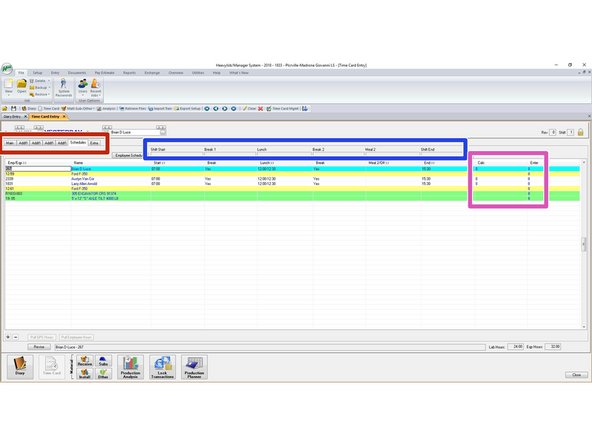
Click on the Schedules tab. This window will pop up showing the schedules of the crew inputted by the Foreman.
-
Crew Personnel schedules are mandatory. We use them for audits, and payroll mistakes. We do not use the schedules for the equipment currently.
-
You need to confirm that each employee has Shift Start, Breaks-Yes/No, Lunch recorded, and Shift End.
-
Here you can make sure that the scheduled hours lines up with the total hours entered for the day on the cost codes.
-
-
-
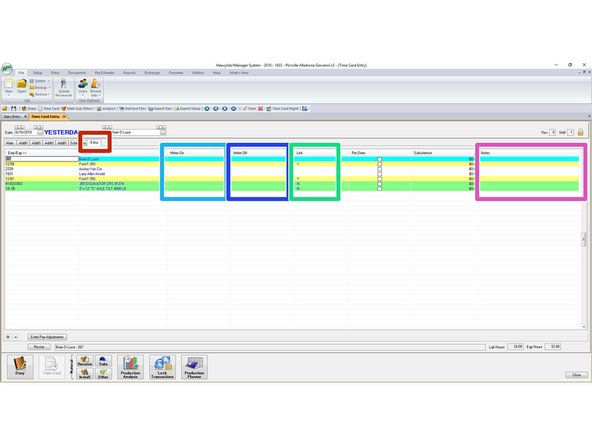
To review the equipment hours make sure you are on the Extra Tab.
-
Here you can see the Meter on hours. This would be the previous days meter off hours. We do not require the Foreman to input accurate meter hours for meter on.
-
This is the meter off hours for the end of shift. We only require accurate meter off hours once a week. Currently the Hour readings are required on Fridays.
-
Hour meter readings are required for all SRC Equipment, and Rental Equipment.
-
Link, means that the Foreman linked the equipment to an employee on the project for that day. You can see that the trucks are linked to the employees driving the trucks.
-
Notes is where the Foreman have the ability to write note for employees or equipment. They can put down that an employee was late to work, or excused from work, or equipment was having mechanical issues, or down.
-
-
-
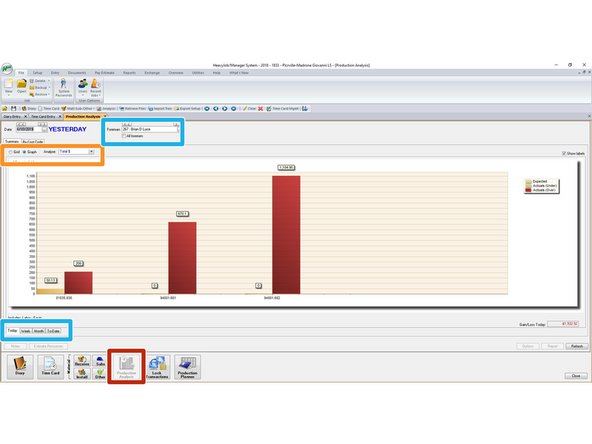
The Foreman are requred to look at a production Analysis every day.
-
Click on Production Analysis to pull up this window.
-
You have the ability to look at a Grid, or Graph, and analyze by Labor Hour, Units, or Dollars.
-
Here you can look at day, week Month or to-date for the project. You can also just look at this information fro the Foreman selected, or click All Foreman and that will show all codes used for all Foreman for your selection.
-
This is only as accurate as the Foreman tracks and enters the information.
-
-
-
Revising a time card should only be done if necessary. If the Foreman is not doing something correct, it is best to ask them to revise and re send it. or Reject the time card and give them an explanation of whats wrong and have them revise and re send.
-
You can change the cost codes the crew is working on in this area.
-
You can change the Qty's the Foreman placed under the cost codes.
-
You can move hours around from cost code to another.
-
You have the ability to change the pay class of the employees.
-
We do not recomend you change the total hours or the pay class. If you change the employees pay class or total hours for the day, the signature for that employee will be deleted. They signed for the hours and pay class that was originally set up on the time card. We need their signatures every day for payroll, and Audits.
-