Parts
No parts specified.
-
-
Make sure you are on the correct Job.
-
Click on Setup and then Equipment.
-
-
-
Typically most of the equipment is activated after a job is set up.
-
By inactivating all equipment and only activating the equipment needed on the job it will help the Foreman in the Field find the equipment faster rather than going through our entire equipment library.
-
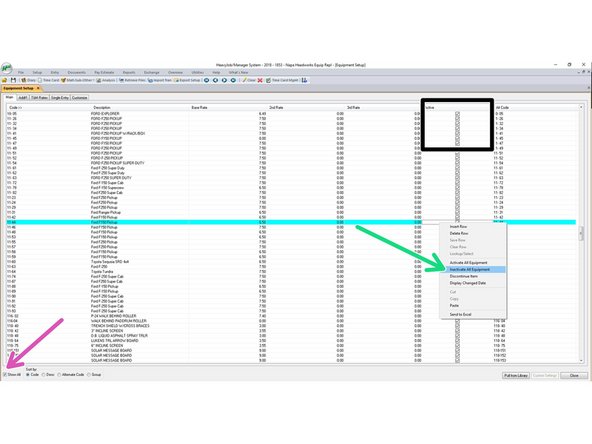
Make sure you have show all clicked
-
You can Right click on any of the active box location and then inactivate all equipment.
-
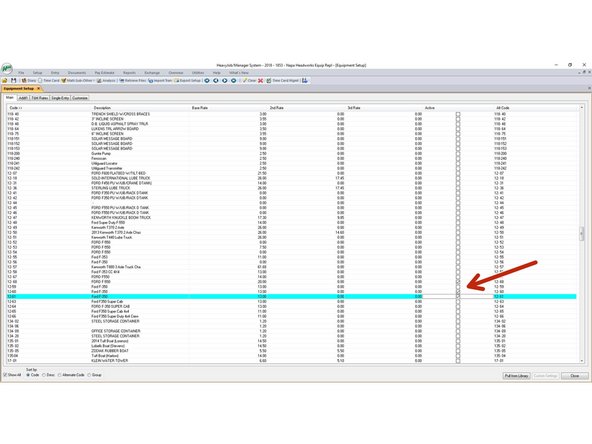
Once you have inactivated all equipment you can click and activate only the equipment you plan to have on you job.
-
-
-
Just click the active box to activate all the equipment you will be using on you job.
-
-
-
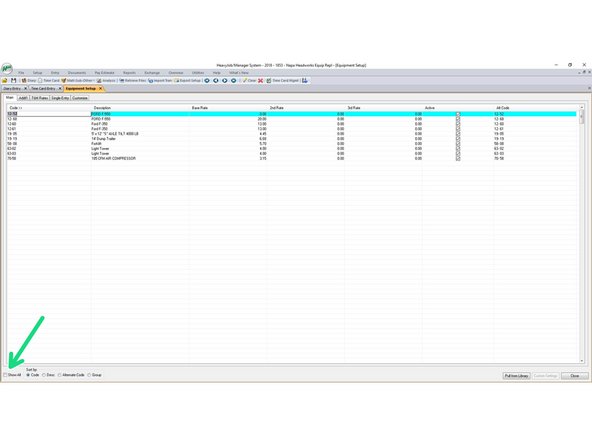
Here you can see that we are only seeing the activated equipment for the job.
-
Make sure you un-click the show all button to only show the activated equipment.
-
-
-
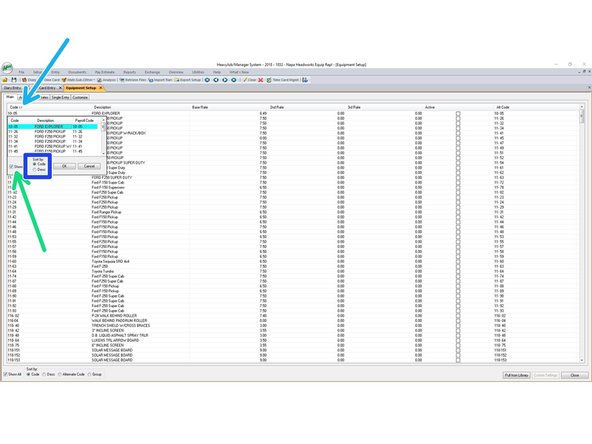
There is a way to search for equipment, just make sure the Show all at the bottom is checked.
-
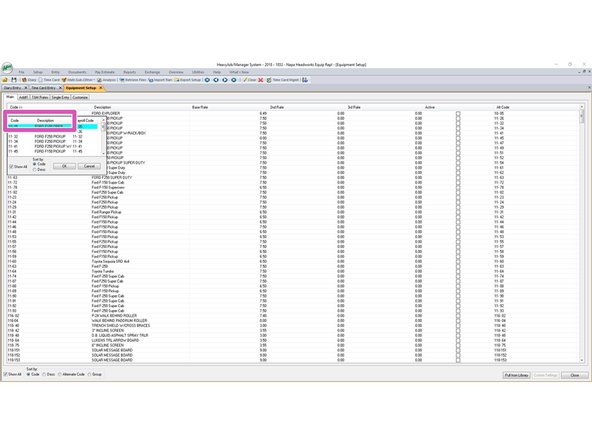
Click on the Code>> Bar, this will open up the search function.
-
Make sure it show all is checked.
-
You can click on Code, or Description. Once you click on one of those areas, you just start typing what you are searching for.
-
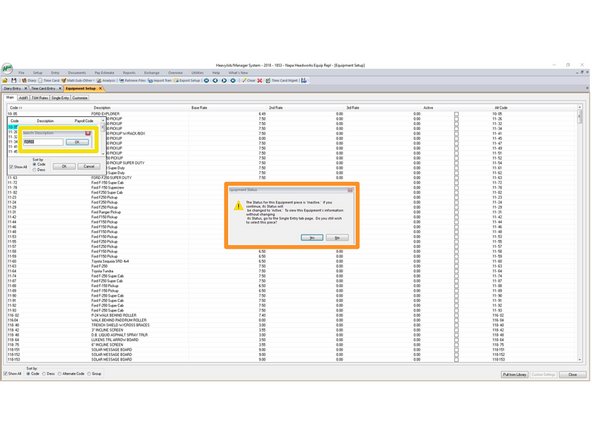
Once you start typing this box shows up and you can click OK to search the field of Code or Description.
-
You can see that I was searching the Description.
-
Once you find the equipment you are looking for, you can double click the equipment or just click once and hit OK. You will get this Status bar, just hit yes to activate that equipment on you job.
-
If you do not want to activate it, click no.
-
-
-
You can click on Code, or Description. Once you click on one of those areas, you just start typing what you are searching for.
-
-
-
Once you start typing this box shows up and you can click OK to search the field of Code or Description.
-
You can see that I was searching the Description.
-
Once you find the equipment you are looking for, you can double click the equipment or just click once and hit OK. You will get this Status bar, just hit yes to activate that equipment on you job.
-
-
-
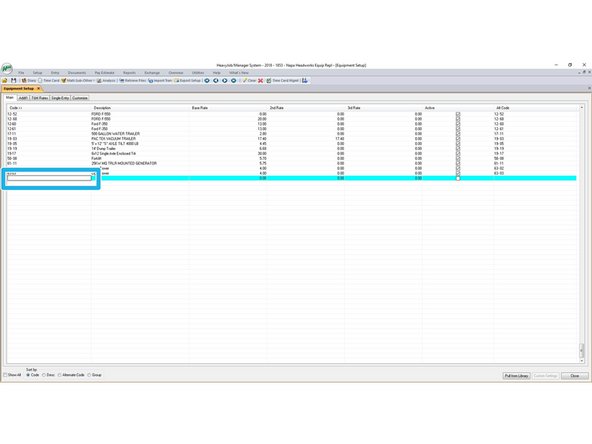
Adding new equipment is done on either show all page or on your activated page. I use the job activated page. Both work the same way.
-
Just click on the next available box location and you can start adding you new rental equipment.
-
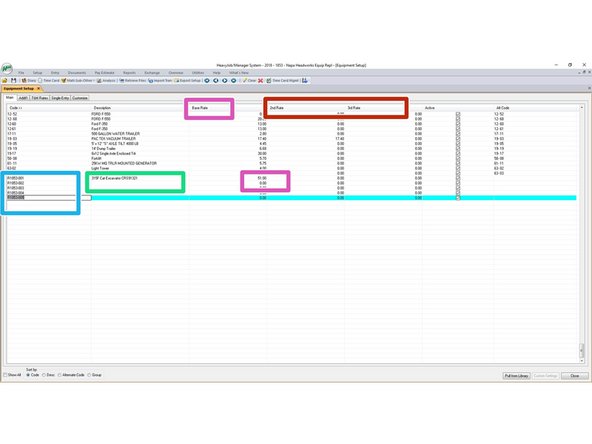
The way we need to enter in rental equipment is as fallowed: R Job Number-001 and so on.
-
-
-
You can see on this project the rental equipment is R1853-001 and so on. This makes the rental equipment on your project specific to your project.
-
If you have the equipment and rental equipment numbers you can add them to the description. However if you do not have the information you can leave blank until you have it.
-
You can add a few extra Rental equipment numbers for you project for the Foreman to use as rental equipment shows up to the job site, but make sure to leave the description blank until you know exactly what you want on that specific Code.
-
If you are using for a one day, you can input the daily rental rate, or weekly you can do the math to provide an hourly cost for the equipment, same thing for monthly rentals.
-
We do not use the 2nd Rate or 3rd Rate.
-
Once completed with adding equipment you can close the Equipment Setup box. Once you are completed and closed out, the Foreman will just need to do a refresh on their iPads and the equipment will be there withing a few minutes.
-