version_001

Major VersionM

by Chris Sullivan

Introduction

This guide shows how to select specific jobs in Heavy Job Field. Generally you may only be working on one job at a time, but you may need to switch jobs from time to time.

Parts

No parts specified.

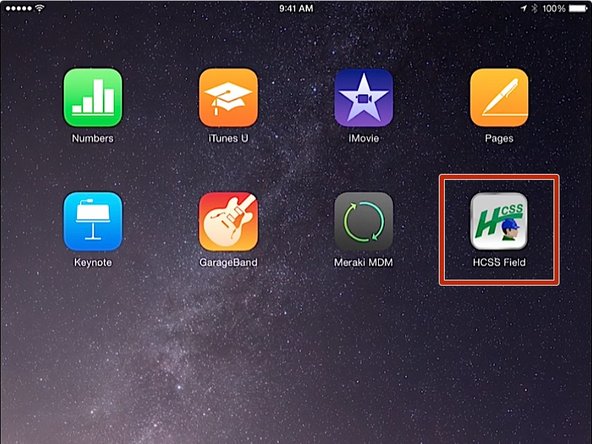
  1. From the iPad home screen, click on the HCSS Field app
    • From the iPad home screen, click on the HCSS Field app

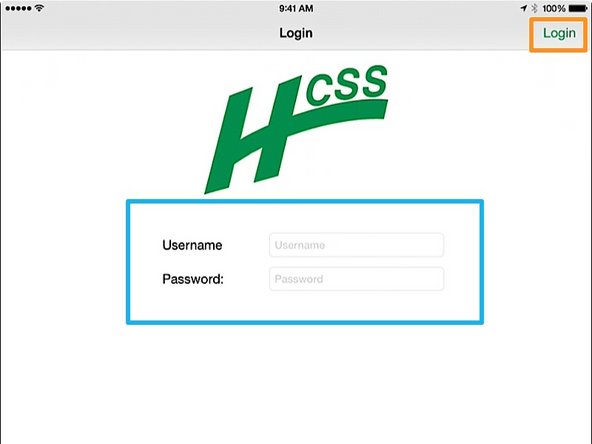
  2. Enter in your Username and Password If you do not know your HeavyJob User Name or Password, contact the IT department Press the Login button.  You will be taken to the HCSS Field home screen
    • Enter in your Username and Password

    • If you do not know your HeavyJob User Name or Password, contact the IT department

    • Press the Login button. You will be taken to the HCSS Field home screen

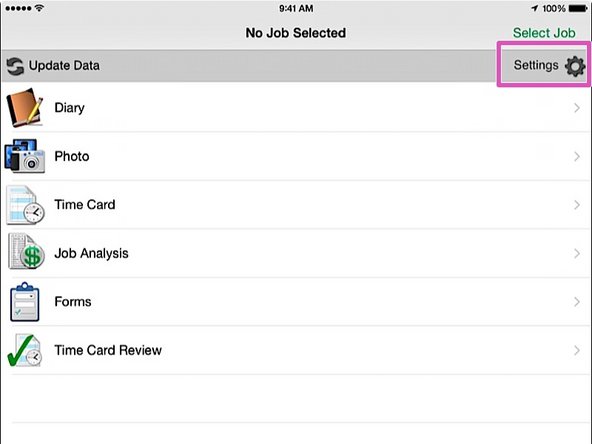
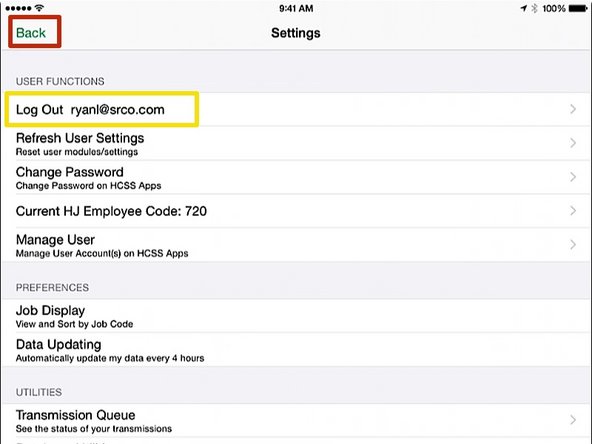
  3. From the HCSS Field home screen, click on the Settings button Verify that you see your login Username
    • From the HCSS Field home screen, click on the Settings button

    • Verify that you see your login Username

    • Click the Back button

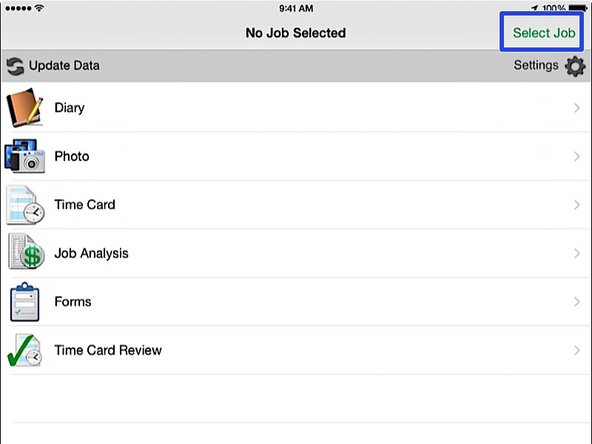
  4. From the HCSS Field app home screen, press the Select Job button
    • From the HCSS Field app home screen, press the Select Job button

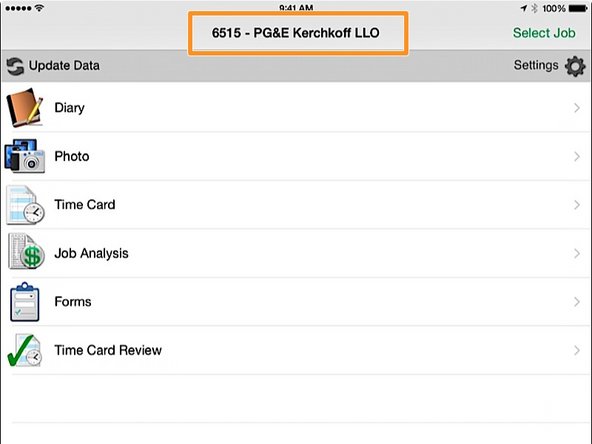
  5. In the job selection window, push on the job title that corresponds with your job Back at the HCSS Field home screen, verify that your job is displayed at the top of the screen
    • In the job selection window, push on the job title that corresponds with your job

    • Back at the HCSS Field home screen, verify that your job is displayed at the top of the screen

Finish Line

Chris Sullivan

Member since: 8/11/15

9 Guides authored

Team

Viewpoint Member of Viewpoint

0 Members

0 Guides authored

0 Comments

Add Comment


View Statistics:

Past 24 Hours: 0

Past 7 Days: 0

Past 30 Days: 0

All Time: 18