Parts
No parts specified.
-
-
Make sure you are on your job
-
Make sure you are on the Entry Tab.
-
Then you will click on Production Qty Adjustment.
-
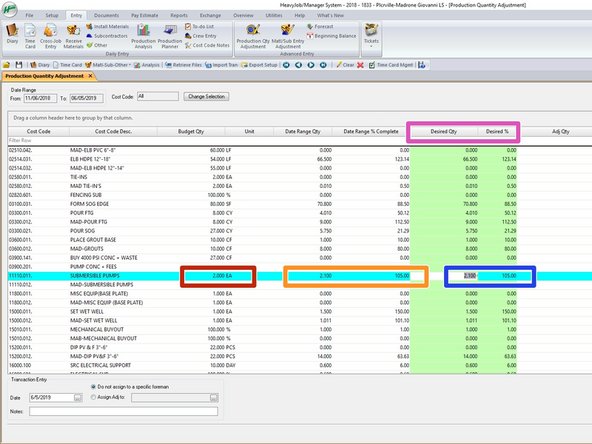
This window will pop up, and you have the ability to look at the Qty to date, by the day, week, month, entire job, or custom.
-
If you go by day, week, month, or custom, it will only show the Qty entered on those days in that time period. When you do entire job, you will see all Qty entered for the entire job.
-
-
-
Here you can see that we have budgeted Qty of 2-EA.
-
Here you can see that we have claimed 2.100 and a total of 105.0%.
-
Under desired Qty is where you can change the Qty claimed to date over all.
-
You can do an overall Desired Qty adjustment, or a Desired % Complete to date.
-
This will not change individual days of Qty claimed, just the overall to date.
-
-
-
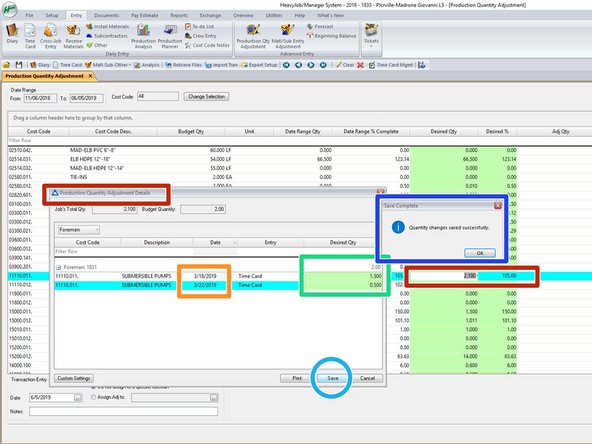
Here you can see to date Qty claimed for each day. This is entire job to date claimed.
-
If you double click on the desired Qty, or the desired % the Production Qty adjustment details window will pop up.
-
Here you can see the dates that the Qty's were claimed on a time card. There were only two time cards/days that this cost code was used.
-
Here you can change the Qty on each time card to True up the total Qty. Here we entered in 1.5 and .5. This will give us the correct total we need for completion of this phase of work.
-
Once you are done and have everything entered properly, you can click Save.
-
If you mess something up here just click cancel and no changes will be made and you go back to the true up screen.
-
Once you save it, the Save complete window shows you that the qty have been saved.
-
-
-
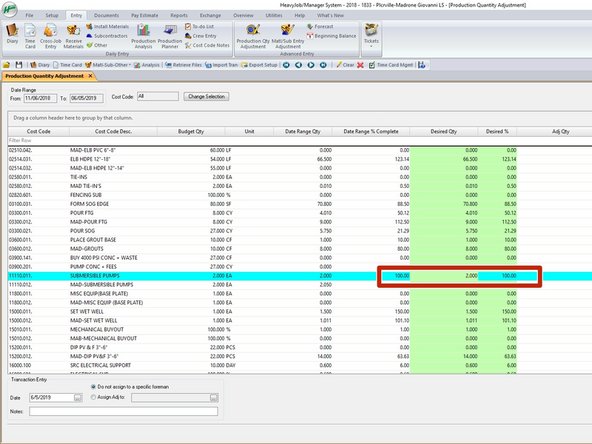
Here you can see that the Qty has now changed to 2.00 and the total % is now 100%.
-
Now you can go to the next cost code that needs to be trued up.
-
This is required every week by Tuesday.
-