Tools
Parts
No parts specified.
-
-
Make sure you are on the correct job.
-
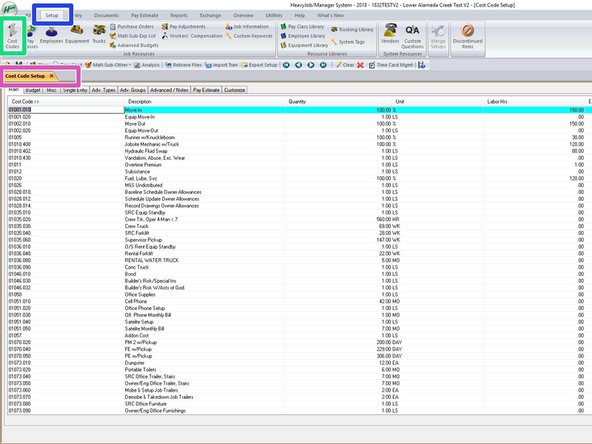
Click on Set up to access Cost Codes.
-
Click on the Cost Code tab to access your cost codes.
-
Now your cost code window will open and look like this.
-
-
-
95000 Cost codes are for Potentially Reimbursable Costs. Set them up to track like your PCO #'s. PCO # 1 = 95001, this will make for easier tracking.
-
Make sure you are on the main tab.
-
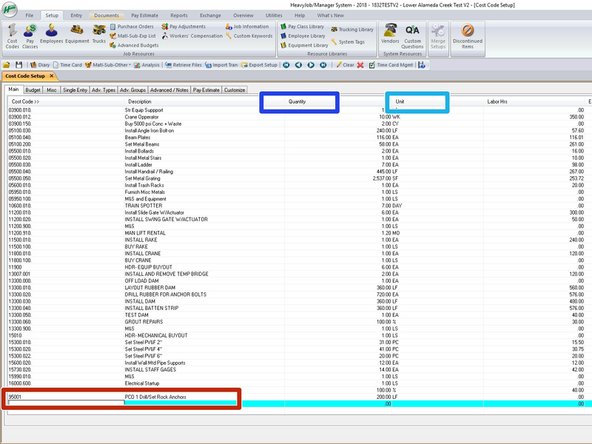
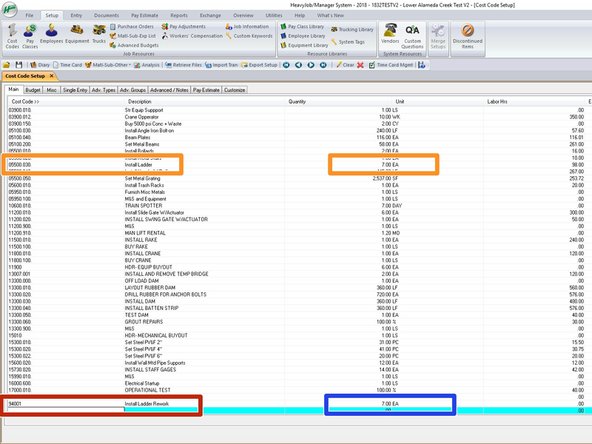
Scroll to the bottom of the Cost Codes. this is where you can add the new Cost code you will be adding. Here you can add the Cost Code and the Description.
-
After your cost code is entered, you can enter in the quantity, even on extra work we should be able to give the cost code a quantity. Not just a %.
-
Here you can enter in the Unit, like SF, LF, CY, PC, EA. Even on extra work we should be able to give the Foreman proper units to claim to.
-
Looking at the cost code now, we should have made it 95001.010, then we could separate out Drill-95001.010, 100' LF, Set-95001.020, 100' LF Grout-95001.030, 10-EA
-
-
-
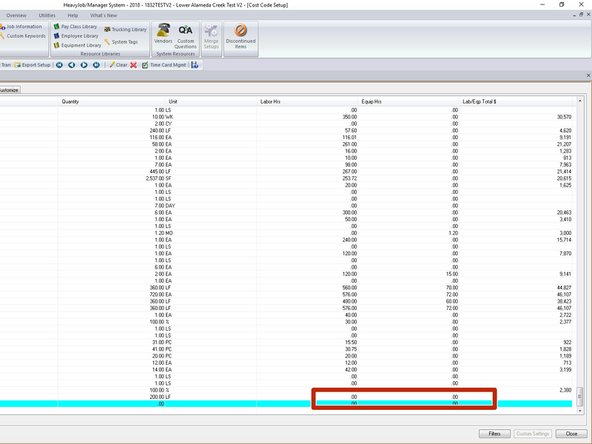
If the PCO is a Forward priced change order, you should have an estimate to utilize, and you can enter in Labor and Equipment hours.
-
You will enter in the hours in the Main Tab in this location.
-
-
-
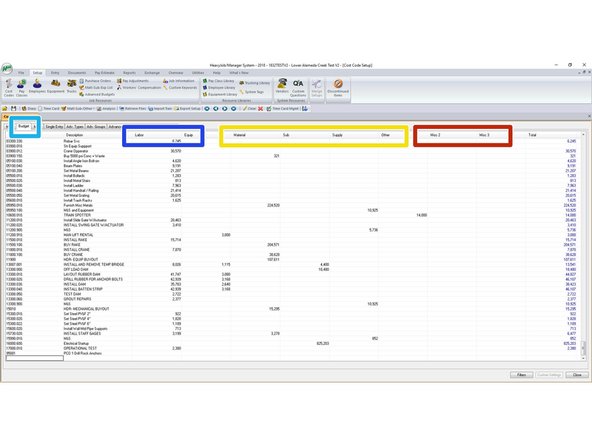
If you have a Forward priced change order, you can impute the rest of the budget for the new phase code under budget. Just click on this tab.
-
Here you can impute the dollars for your labor and equipment.
-
We do not need to input Materials, Sub, Supplies, or Other in Heavy Job since we do not track that at the Foreman or Field Level.
-
Misc 2 and 3 are not used in either system Heavy Job or Viewpoint. So you do not input anything in these columns.
-
-
-
Estimate oversight cost codes are codes we missed during the bid process, and will not be getting reimburse for the work performed. When this happens we need to create a new cost code that most closely relates to the standard cost code structure.
-
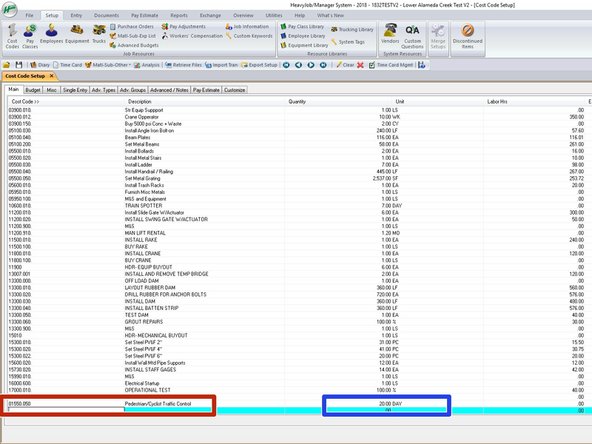
At the bottom you can create your new cost code and enter in the description.
-
Here you will enter in you qty and units.
-
Once you have done this you can hit Tab, or Enter until you are on the next line. Once you have closed the cost codes, when you return this cost code will be in line with the rest, and not just at the bottom.
-
-
-
For incidental rework items, code to the original phase code the work was performed under. If the rework is for Replacement of Permanent Work Only, set up a new phase code for it under a 94000 series number.
-
Example: We installed the ladders incorrectly, or in wrong location and had to demo and relocate and re install.
-
Add new phase code: 94001 at the bottom of the page, give same description and add rework.
-
Enter in the qty, and units to be reworked.
-
-
-
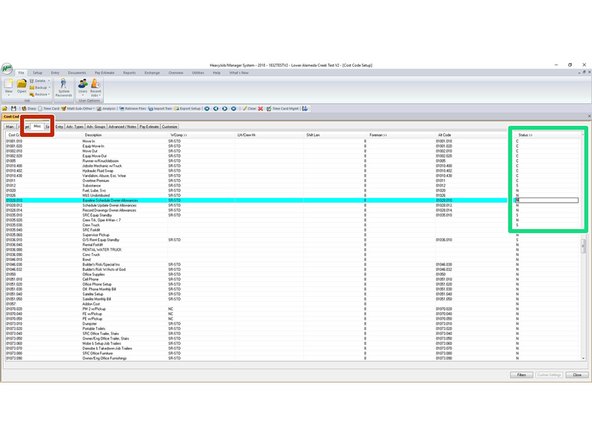
On the Misc Tab you can edit what codes the Foreman see.
-
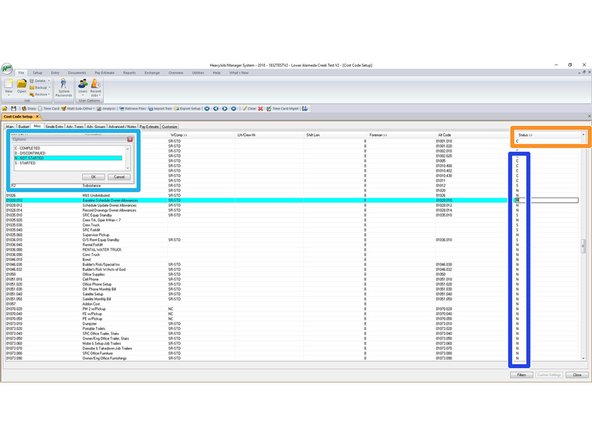
Under Status is where you will change the status of the cost codes.
-
This is where you can turn off codes like incidentals, or cost codes with no Labor and Equipment on them. Examples are Runner, Dumpsters, PM, PE, Bonds, Office, ETC.
-
If you click on the status bar, it will pop up with the window on the left. These are the status options we have.
-
DO NOT USE THE DISCONTINUED STATUS, IT BREAKS THE SPACE TIME CONTINUUM. bold text
-
You have Completed, Discontinued, Not Started, and Started. Use only Completed, Started, and Not Started.
-
You can also just type in C, N, or S in this column. Also if you click on any of the columns in the status and press F4 it will pop up the window to remind you of your options.
-
If you mark as Started, or Not Started the employees can see the cost codes, to make it so they don't see them, mark them as C - Completed.
-
-
-
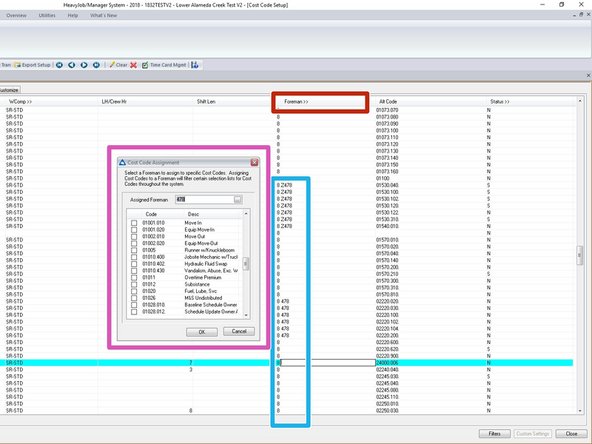
Under the same Misc Tab you can Assign cost codes to Specific Foreman.
-
Clicking on the Foreman Tab will pop up the window to the left.
-
In this window, you can asign a Foreman employee number to certain codes you want them to see.
-
Or you can just enter them in this column.
-
We do not recommend using this feature due to changing Foreman on projects so much. Use at your own risk.
-