Introduction
Use the steps outlined below to install an available iOS update for your iPad. iOS is the operating system of the iPad. You may be asked from time to time by Syblon Reid's IT department to install updates on your device.
Tools
No tools specified.
Parts
-
-
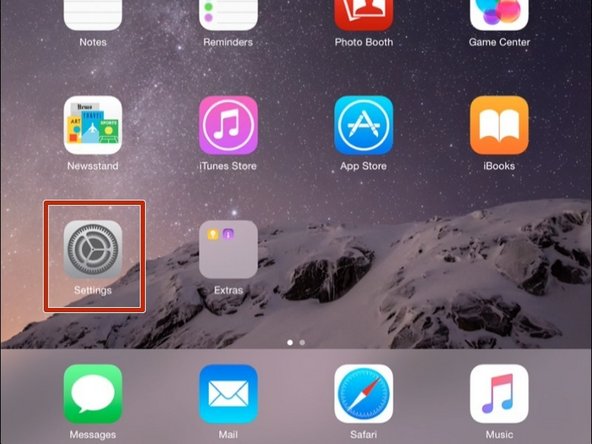
From the iPad home screen, click on the Settings app.
-
-
-
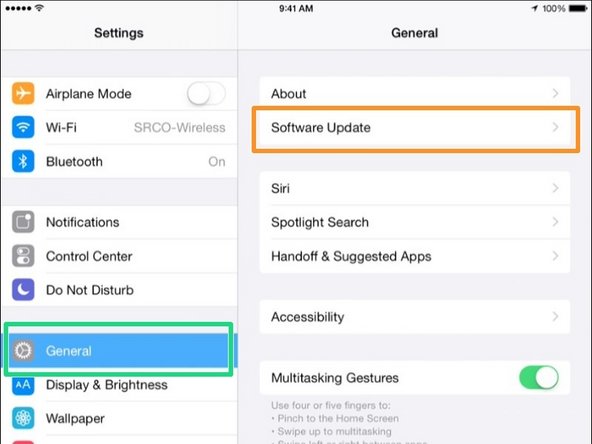
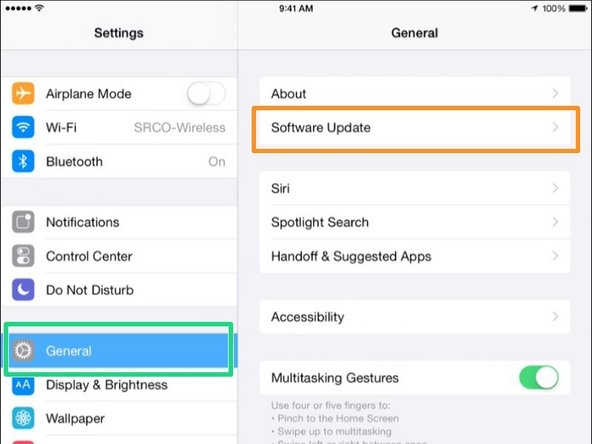
On the left hand side, click on the General button.
-
On the right hand side, click on the Software Update button.
-
-
-
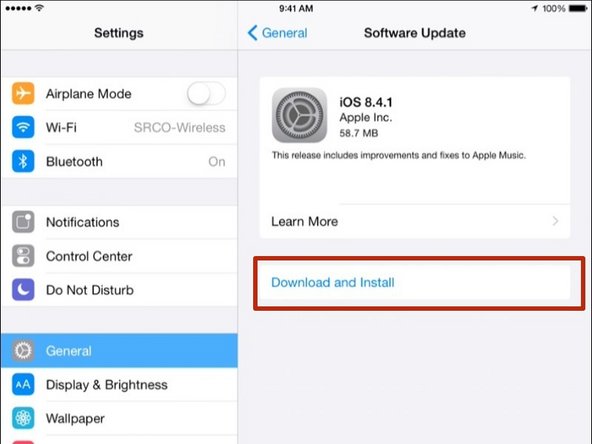
Click on the Download and install button.
-
-
-
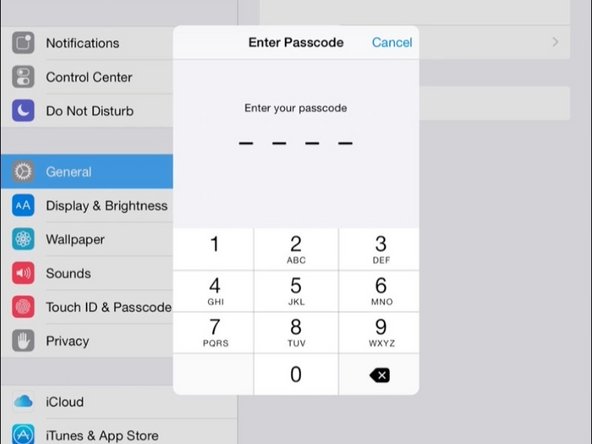
Enter in the passcode for the iPad. This is the same passcode as the lock screen passcode.
-
-
-
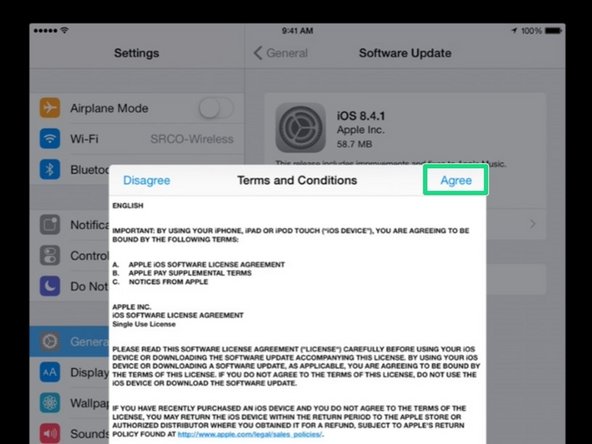
If prompted, click the Agree button to accept the Terms and Conditions.
-
-
-
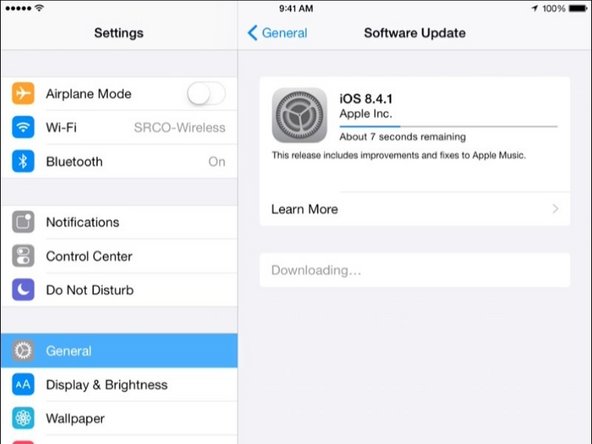
Wait for the update to finish downloading. This can take several minutes, depending on the size of the download and the speed of your wifi connection.
-
-
-
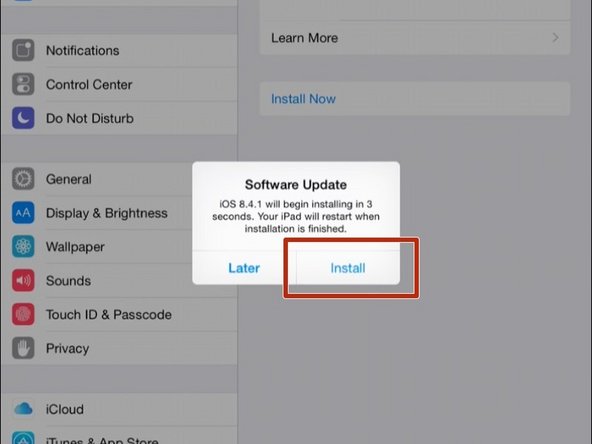
When the download had completed, click the Install button to install the update.
-
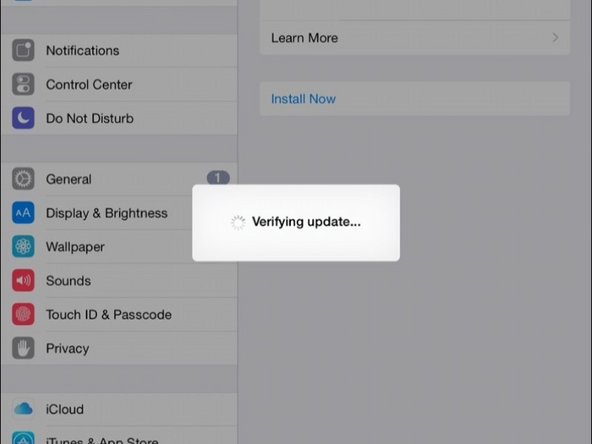
The update will now be verified.
-
One the update is verified, the iPad will restart and install the update.
-
-
-
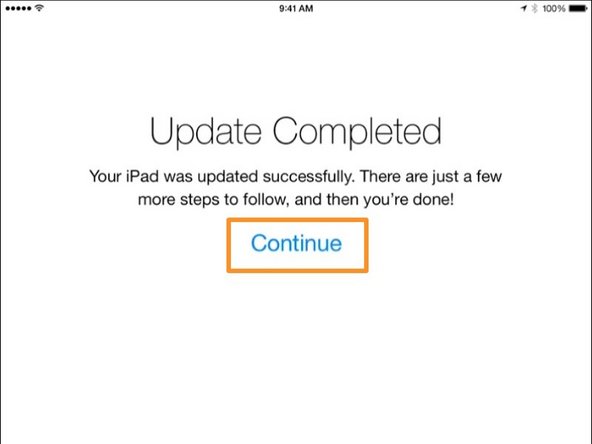
Once the iPad restarts, you will see a screen the the update has completed.
-
Click on the Continue button to get back to the home screen.
-
-
-
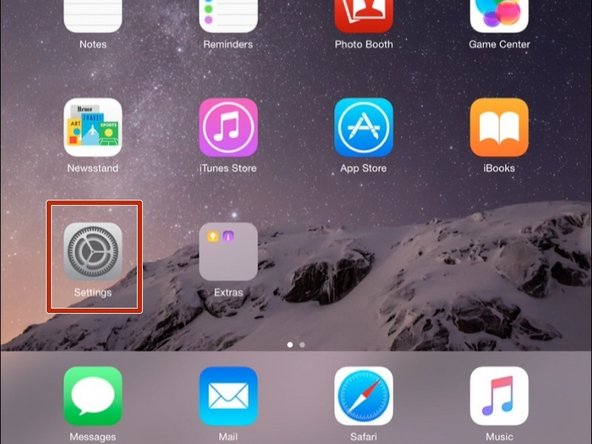
From the iPad home screen, click on the Settings app.
-
On the left hand side, click on the General button.
-
On the right hand side, click on the Software Update button.
-
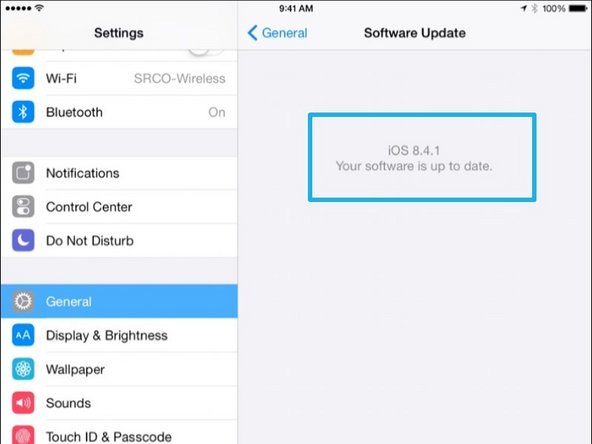
If there are no more updates, you will see a message that Your software is up to date.
-
If more updates are available, continue installing updates until all updates have been applied.
-