Introduction
The diary entry is an accounting of all the things that happened throughout the day. It is a place to note working conditions, meetings that took place, deliveries, visitors, delays, and any other information relevant to the days work.
Tools
Parts
No parts specified.
-
-
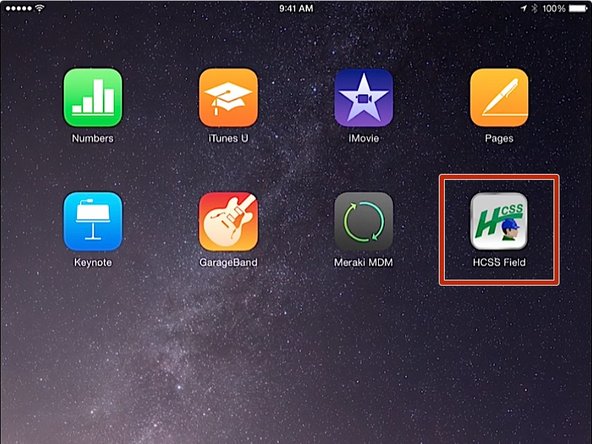
From the iPad home screen, click on the HCSS Field app
-
-
-
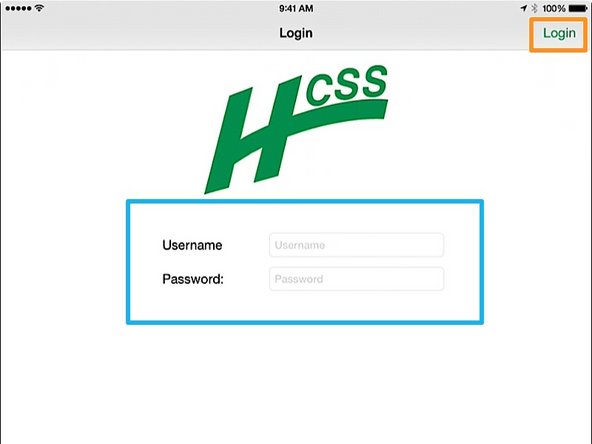
Enter in your Username and Password
-
If you do not know your HeavyJob User Name or Password, contact the IT department
-
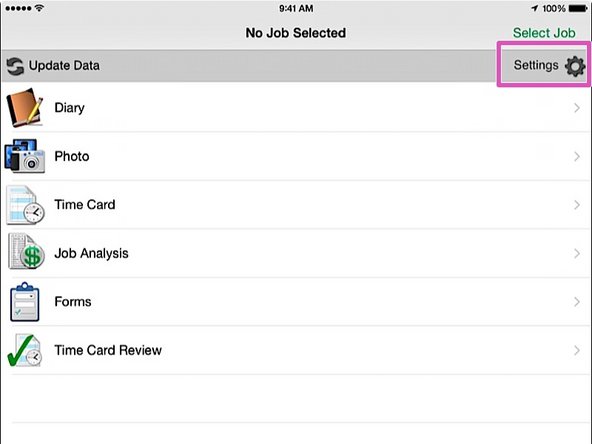
Press the Login button. You will be taken to the HCSS Field home screen
-
-
-
From the HCSS Field home screen, click on the Settings button
-
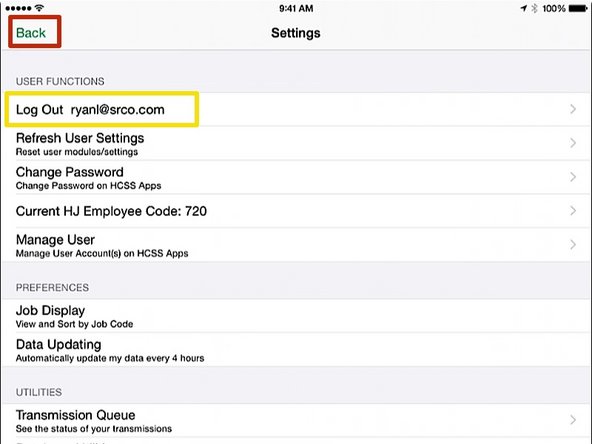
Verify that you see your login Username
-
Click the Back button
-
-
-
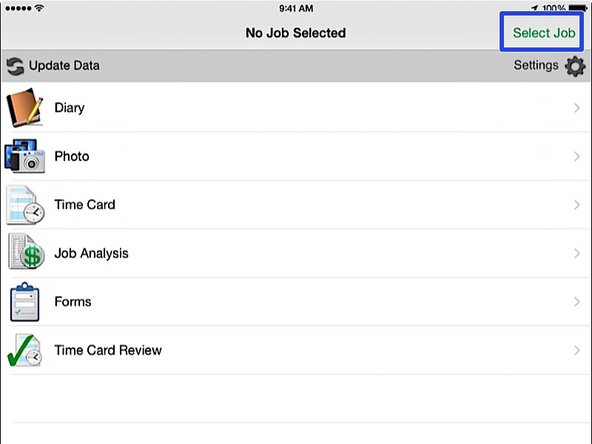
From the HCSS Field app home screen, press the Select Job button
-
-
-
In the job selection window, push on the job title that corresponds with your job
-
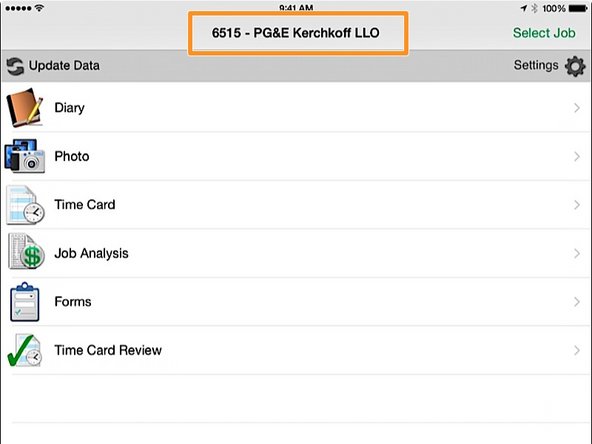
Back at the HCSS Field home screen, verify that your job is displayed at the top of the screen
-
-
-
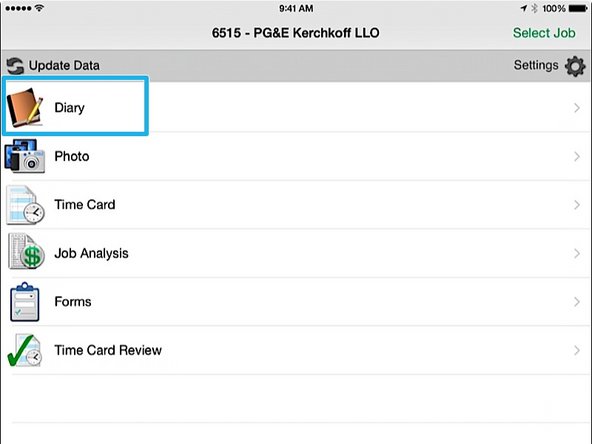
From the HCSS Field home screen, press Diary
-
-
-
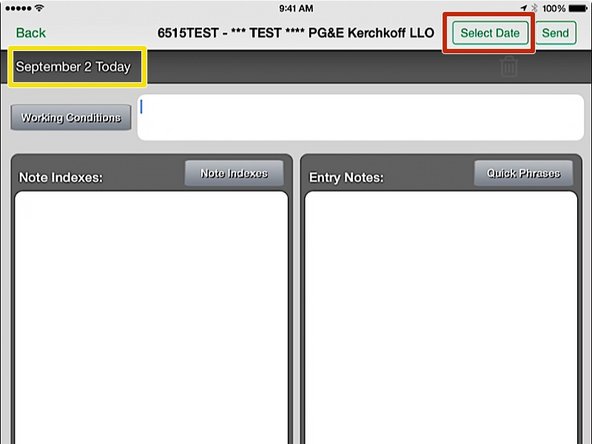
The top of the screen shows the date of the diary entry
-
If you need to adjust the diary entry date, press the Select Date button
-
Press the relevant date for the diary entry
-
-
-
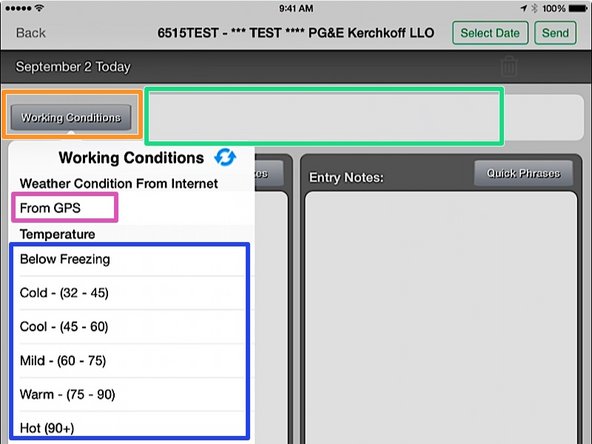
From the Diary home screen, press the Working Conditions button
-
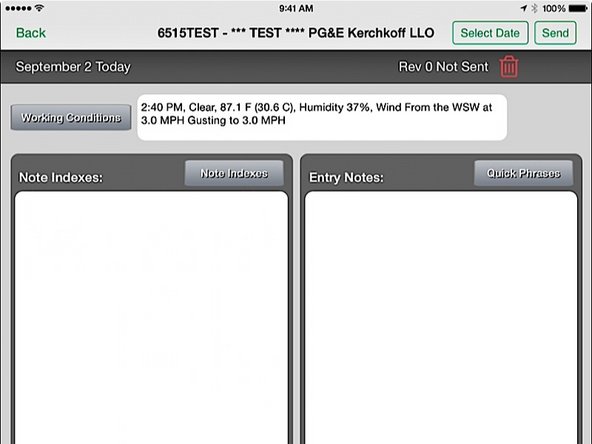
If you want to have conditions entered automatically, based on your GPS location, press the From GPS button. This is probably the easiest method, but if for some reason the app is unable to get your GPS location, you have other options.
-
Alternatively, you can choose from a list of preset conditions and they will automatically populate in the working conditions field
-
If none of these presets are to you liking, you can simply tap in the working conditions field area any type in whatever you want
-
-
-
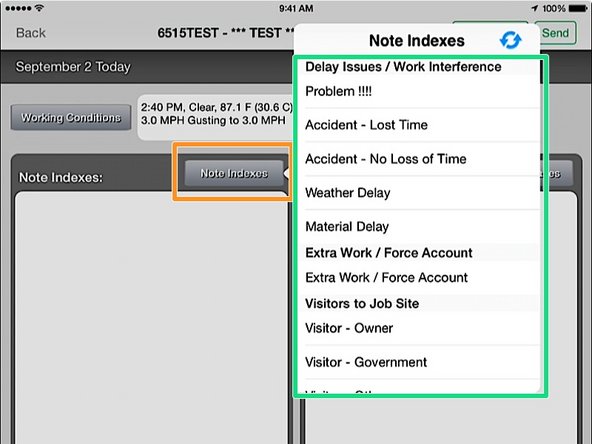
Note Indexes are specific, preset notes for common things that may occur on a job. Each index has a code number associated with it, so that we can track how may times each of these items have occurred across jobs.
-
Click on the Note Index button to bring up the Note Index menu
-
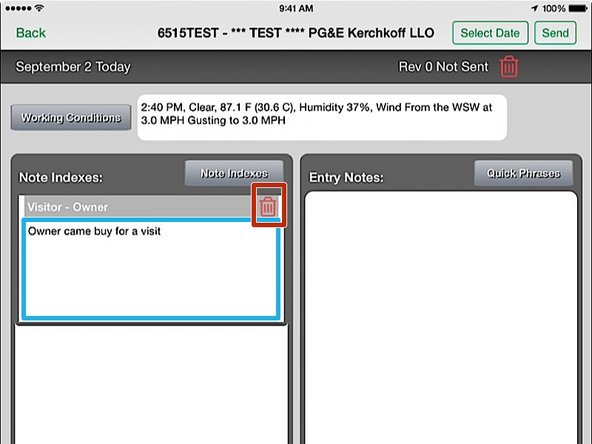
Chose a specific note index menu item to add it to the note index field
-
If you wish to add additional notes for a specific note index item, you can click the text field below the note and add your own notes
-
If you need to delete a Note Index, you can press the Trash Can icon next to the specific note
-
-
-
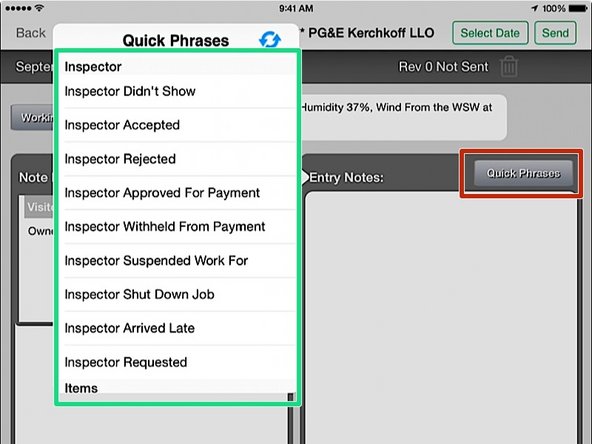
The entry notes section is for all other notes regarding to the job that day. These notes are not tracked, like note indexes are, and allow more for free form note taking. Quick phrases are available for commonly used phrases.
-
Click on the Quick Phrases button to bring up the Quick Phrases menu
-
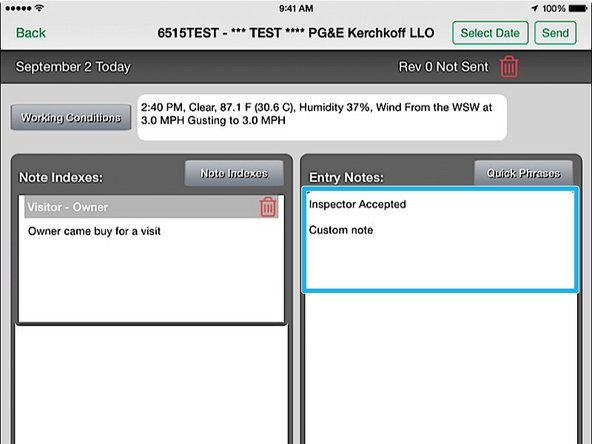
Chose a specific Quick Phrase menu item to add it to the Entry Notes field
-
If you wish to add additional notes you can click the Entry Notes text field and add your own notes
-
-
-
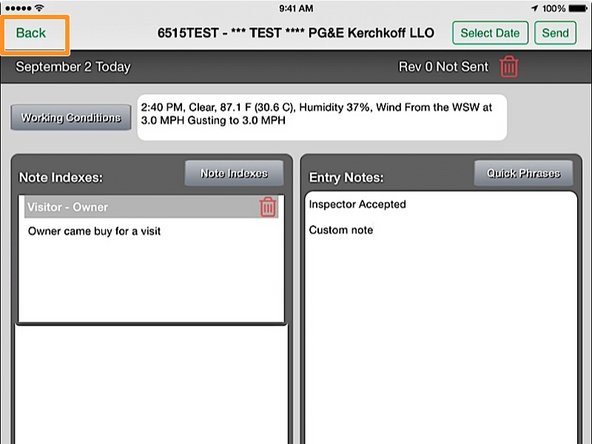
After you fill out the fields, you'll want to get back to the home screen. From the main diary screen. press the Back button.
-
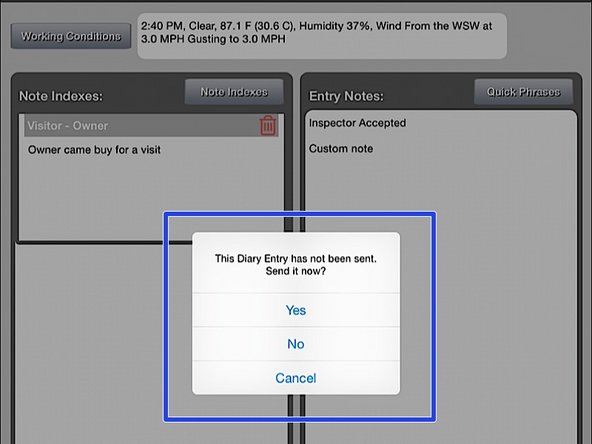
You will be asked if you want to send your changes. This will send your changes to a server that saves your data and syncs with Heavy Job Manager. You can press Yes if you want to send your changes right away, or you can press No if you want to send your changes later. In either case, you data will be saved on the iPad.
-
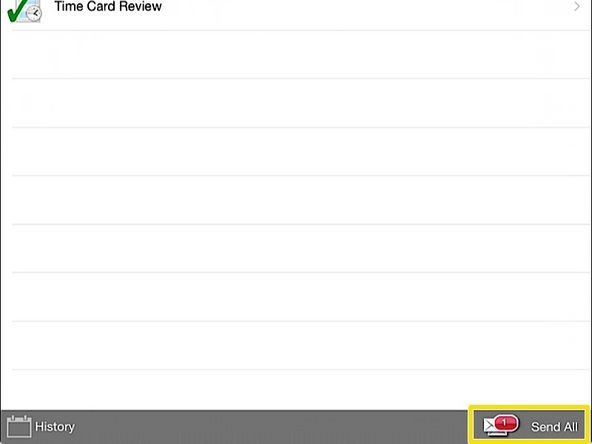
If you elect to NOT send your changes, you will notice a red bubble with the number of unsent changes for your job in the lower right corner. At any point, you can press Send All to send off all of your unsent changes.
-