-
-
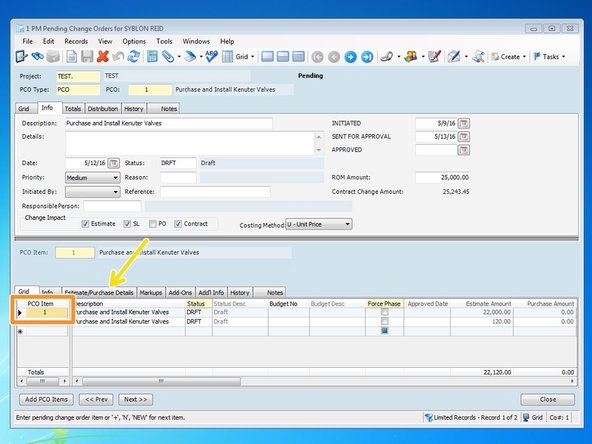
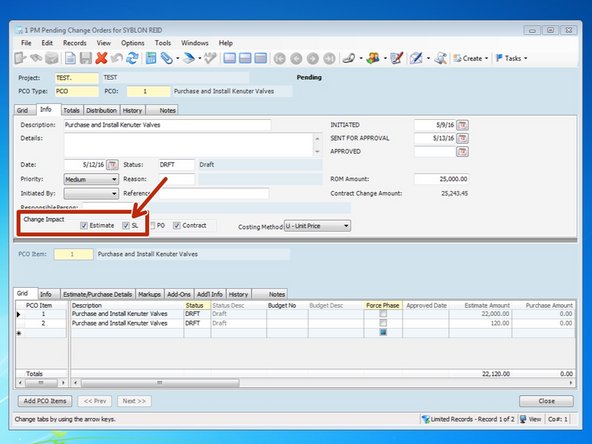
If you have a PCO that includes work for a subcontractor, and you want to create a subcontractor change order from the PCO, click on the "SL" box in the "Change Impact" area.
-
Checking this box will create additional input fields under the PCO Item Estimate/Purchase Details
-
-
-
Select the PCO Item that the Subcontract CO is associated with. It can be set up to a new item or to an existing item.
-
Once you select the "PCO Item", select the "Estimate/Purchase Details" tab.
-
-
-
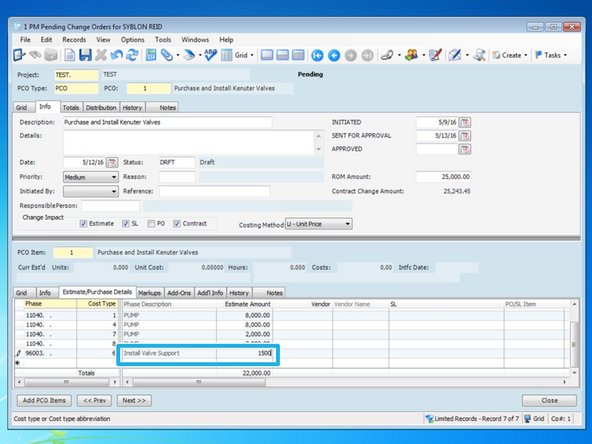
In the "Estimate/Purchase Details" tab, create a new line with the phase code that you want to associate the Subcontractor PCO with. Put in Cost Type "6" for Subs.
-
You can budget the Subcontractor PCO to a new phase code, to a 95XXX number, or to the original phase code set up for that particular Sub. If you create a new phase code, the description and the Unit of Measure you add in the next steps will be set up for that phase code.
-
-
-
Next, start moving along the line adding in as much information as you can. Add a Description and the Amount.
-
-
-
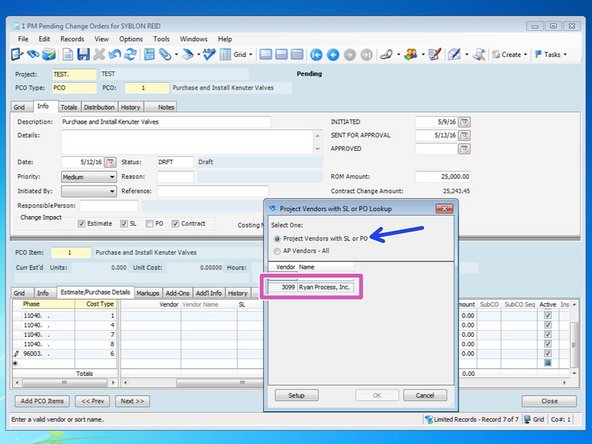
Add the Vendor that your change order is going to. Select the field under "Vendor" and press the F4 key.
-
From the Look up menu, be sure to select "Project Vendors with SL or PO". Subcontracts are set up by our administrators so all we want to be able to do through this module is create Change Orders to existing Subcontracts or Purchase Orders.
-
Select the Vendor and click "OK"
-
-
-
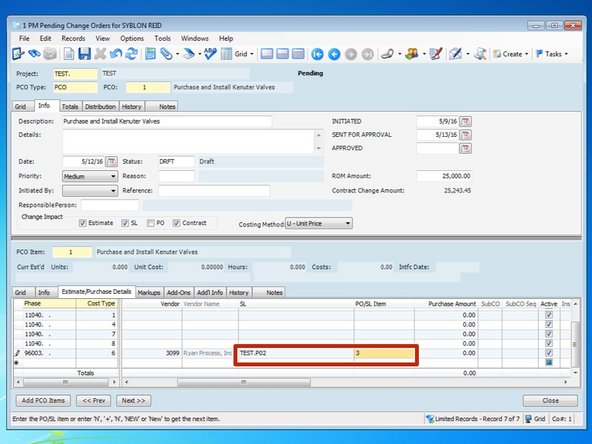
When you select the Vendor, Viewpoint will automatically input the Subcontract Ledger number set up for that Vendor in the "SL" field.
-
Viewpoint will also automatically input the next available number for a Subcontract Ledger Item (SL Item). Item #1 is always the main contract with the sub. If you want to see all existing items, press the F4 key.
-
-
-
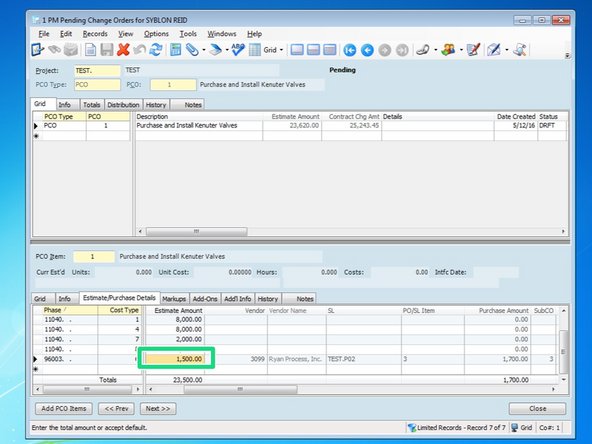
There are two places to add costs. Under the "Estimate Amount" column, put the amount that the PCO will increase the budget.
-
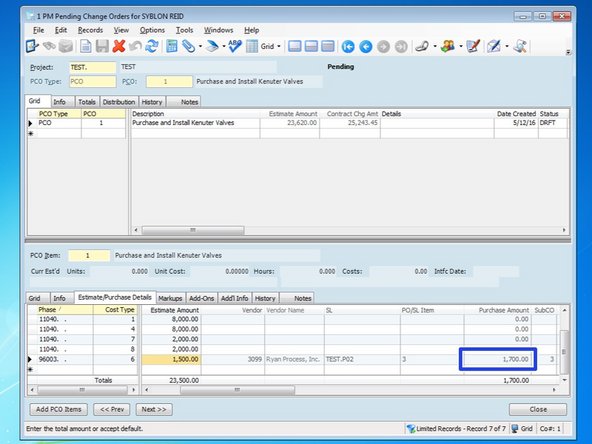
Under the "Purchase Amount" column, put the dollar amount that you are going to set up the Subcontractor Change Order for.
-
Typically, these amounts would be the same. However an example will be, during negotiation with the Owner, the Owner may feel they are only responsible for, and only going to pay for, a different amount then the Subcontractor's quote.
-
-
-
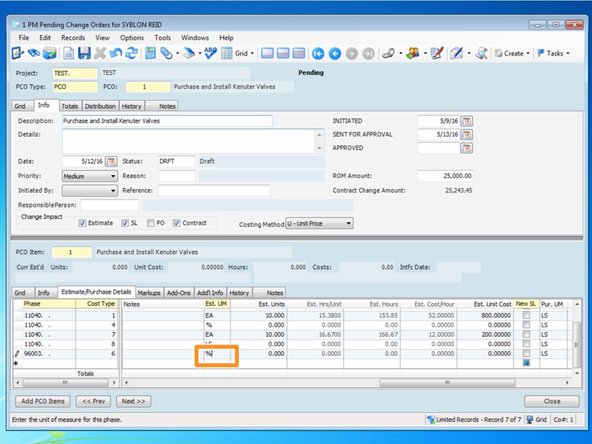
If you are creating a new phase code, be sure to change the Estimate Unit of Measure to the one you want to use. Once it is set up, the Unit of Measure can not be changed. If the phase code is already set up, it will default to the phase code's Estimate Unit of Measure, otherwise it will default to LS.
-
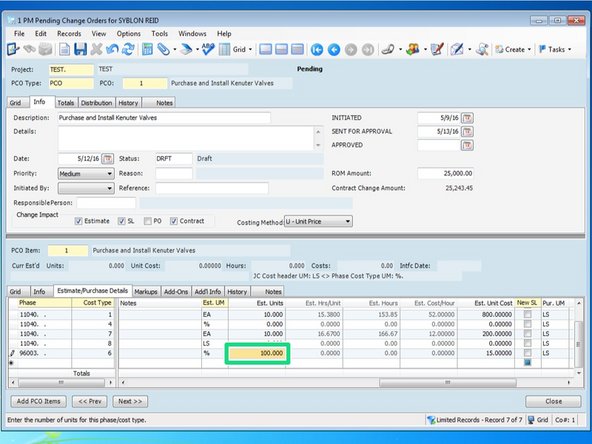
Include the proper amount of Units for this phase code.
-
Under the column "Pur. UM", we need to add the purchase unit of measure. This is ALWAYS Lump Sum (LS). Under Est UM, you can put what type of unit you want to track the info but our subcontracts are set up to purchase based on a LS unit.
-
-
-
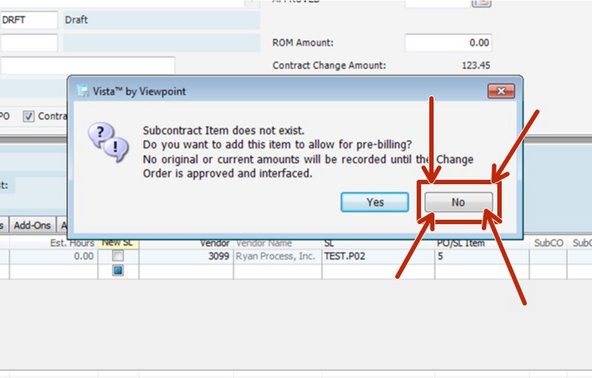
When you attempt to save the record when inputting subcontractor change order information, this screen may pop up. You need to click no. Clicking yes will interface this change order which should only be done by the subcontract administrator.
-
-
-
Once the record is completed in the Pending PCO module, it can now be viewed as a "Non-Interfaced Item" under that vendor's main Subcontract.
-
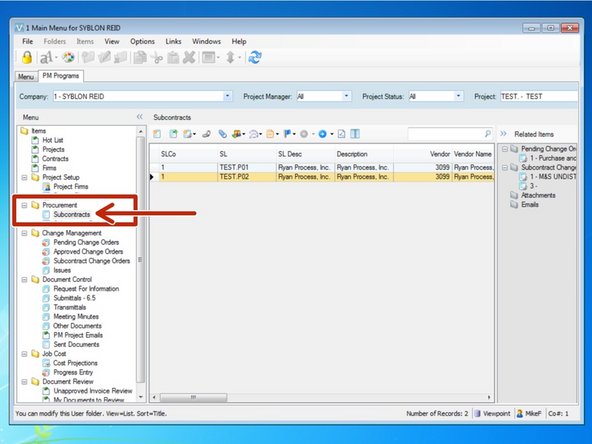
Once the PCO is complete, review the Subcontract Change Order by selecting the "Subcontracts" program in the Procurement folder from the "PM Workflow Tab". Double click on the line of the Subcontract that you are adding the Change Order to.
-
-
-
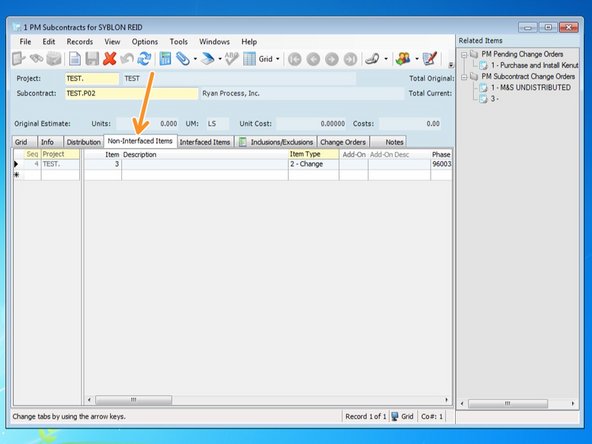
When the Change Order is created form the PCO Module, it is created as a "Non-Interfaced Item" for that subs main Subcontract. Ensure that the project number and subcontract are correct and click on the "Non-Interfaced Items" tab.
-
-
-
When you click on the "Non-Interfaced Items" tab, the first thing you should do its add a description. You can not put a specific description of what this change order is for from the PCO module, so type it in here.
-
-
-
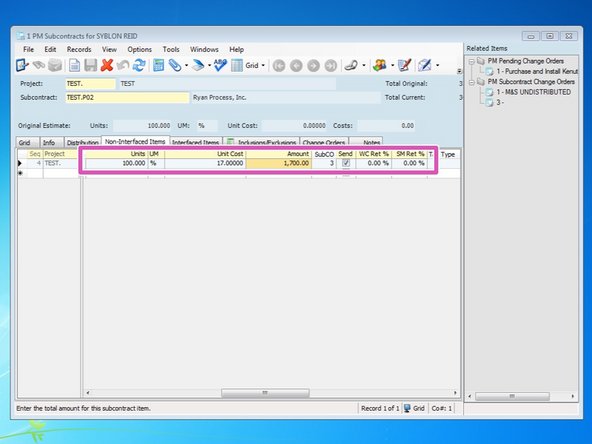
Double check all information. Before being sent out to the Subcontractor, any changes to the change order can be made here. Changes will carry over to the PCO as well, if the PCO isn't approved yet. Verify the amount, units, retention %, and all other information.
-
If everything is ok with the Subcontractor CO, it is ready to be Interfaced. Inform your subcontract administrator that it is ready once you want the change order to go to the Sub to be executed. Once the PCO turns into an Approved Change Order, you still need the administrator to interface the Sub change order and send it out.
-
If you need to execute the change order prior to receiving an ACO from the Owner, just inform the subcontract administrator and they can send it out.
-