-
-
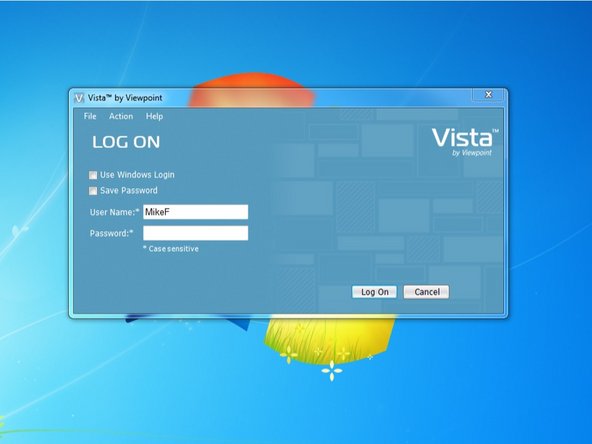
Log in to Viewpoint
-
-
-
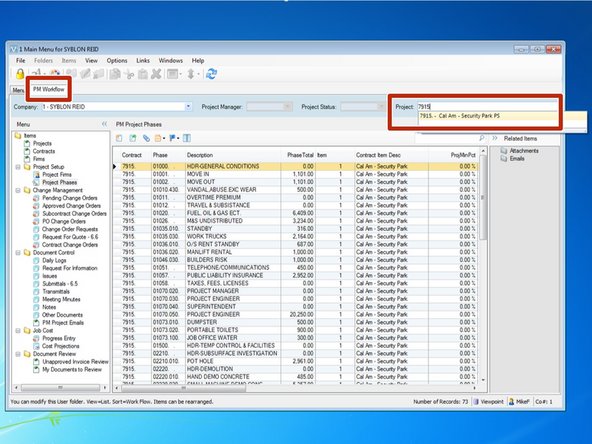
From the PM Workflow tab, select your project.
-
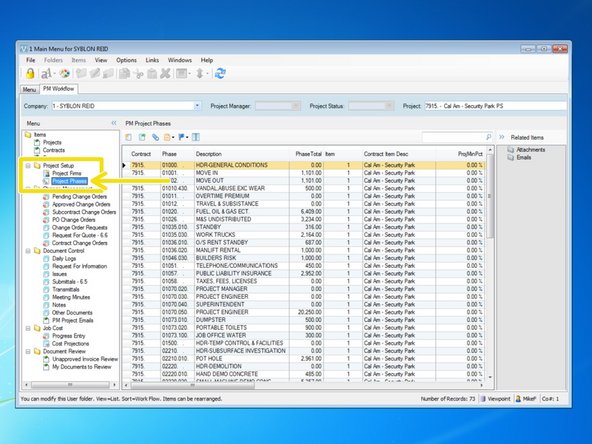
From the Project Setup folder, select "Project Phases".
-
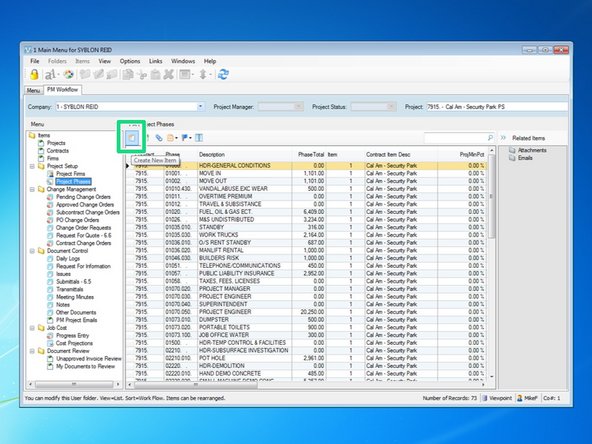
Open the program by selecting the "Create New Item" icon.
-
-
-
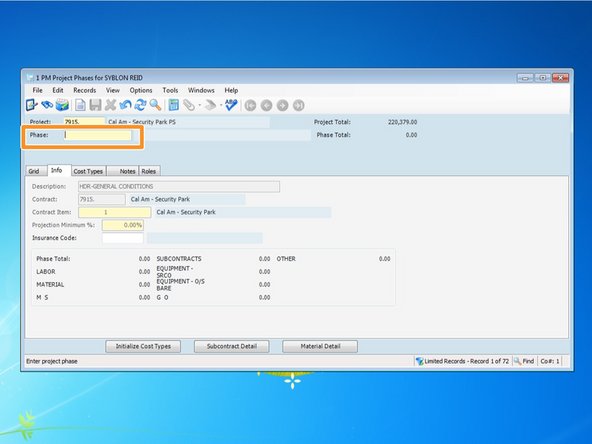
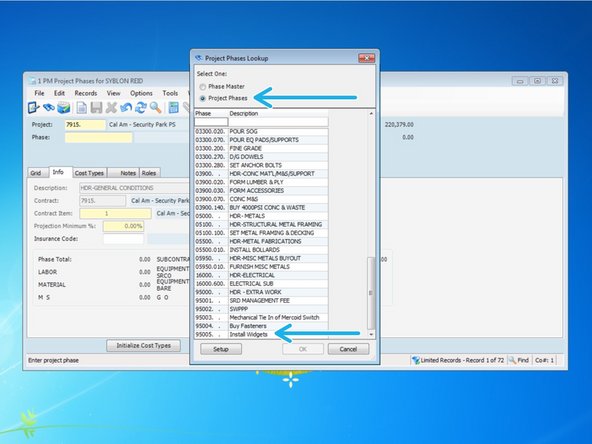
If you know the number of the phase code you want to add, you can type it in here. If you want to see all phase codes to determine what the next number available is, press the F4 key to open Viewpoints look up feature.
-
From the look up menu, select "Project Phases". Scrolling to the bottom, in this project I can see the last active 95XXX number is 95005.
-
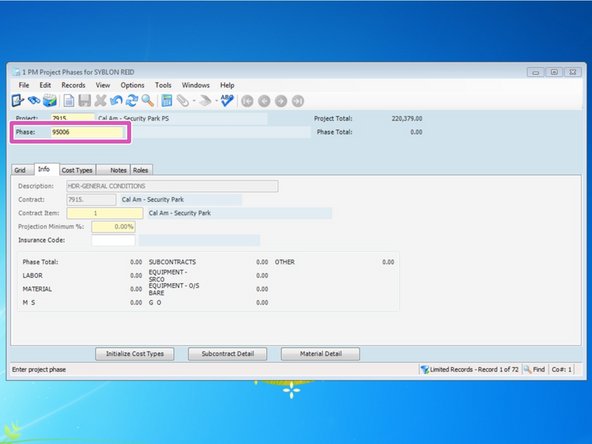
Type in your new phase code number and press the "Tab" key.
-
-
-
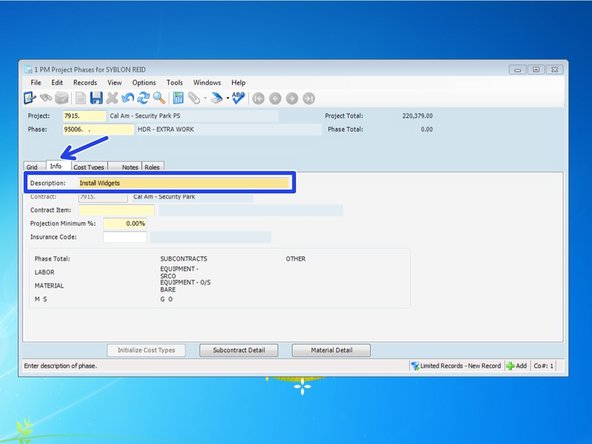
The program will default to the "Info" tab. The description may automatically default to another description. If it does, ensure the phase code is not already set up and just delete the entry and type in a new description. When done, press the "Tab" key.
-
-
-
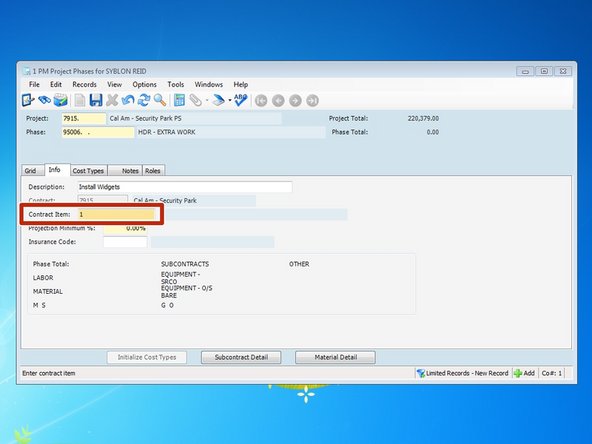
The "Contract Item" should typically be 1. If we chose to set up the schedule of values from our pay estimate in Viewpoint, you would link your phase codes to it's corresponding contract item number. You can press the F4 key to see the list in Viewpoint's look up feature.
-
When complete, press the "Tab" key. Leave the other fields at their default value.
-
-
-
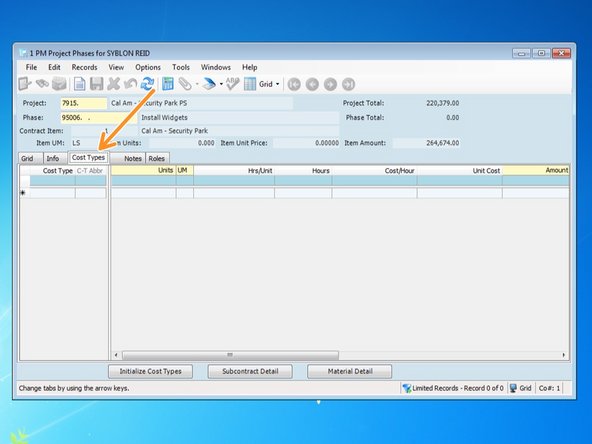
To begin adding cost types, units, and costs, select the "Cost Types" tab.
-
-
-
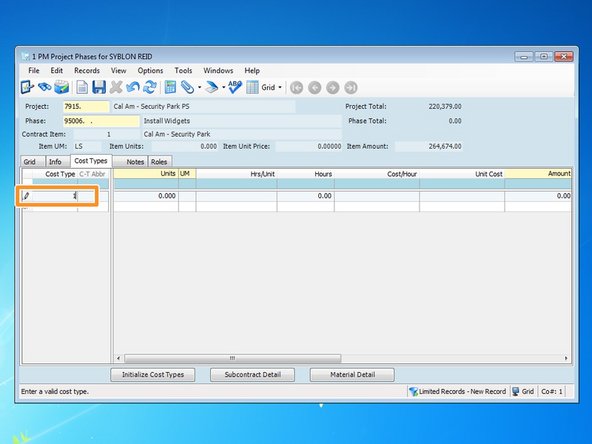
In the row marked with a *, type in the first cost type associated with this new phase code.
-
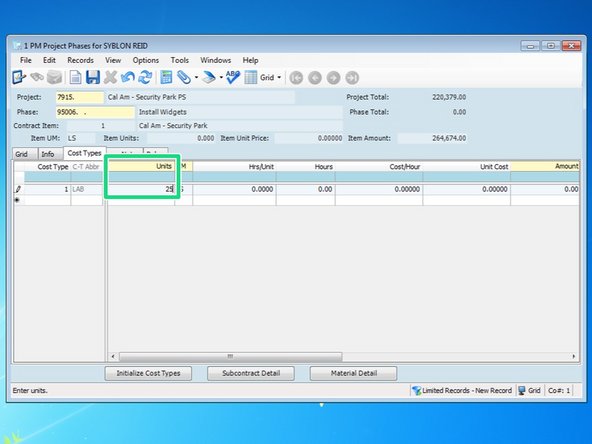
Next, select the field under the "Units" column and put in how many units you are going to track for this code.
-
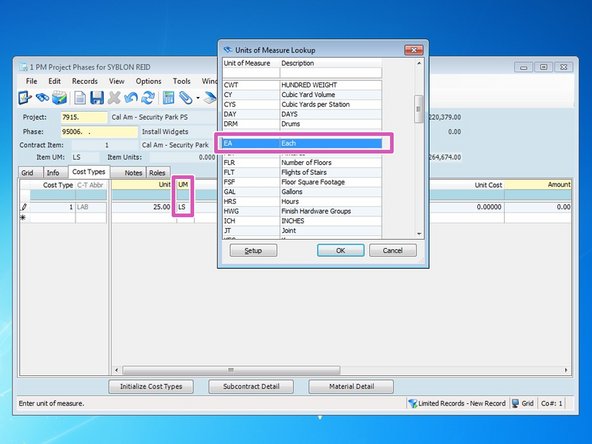
Select the field under the "UM" column. The default unit of measure is LS (lump sum). Put in the unit of measure you are tracking for this code. You can press the F4 key to see a list of available units of measure. Select the UM and press ok.
-
Once you establish a unit of measure for a phase code, you can't change that unit of measure in the future. You will be able to change the amount of units, but not the unit of measure. Be sure the unit of measure you pick is correct. If it is set up wrong, you can delete the phase code and start over only if costs haven't been charged to that code.
-
-
-
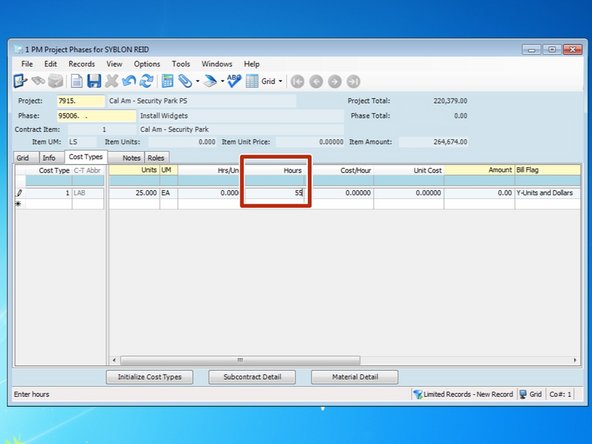
Under the "Hours" column, insert the amount of hours to complete the phase code for that cost type.
-
When you type in your "Hours", the "Hrs/Unit column will automatically calculate. You can also insert an Hrs/Unit value and it will calculate the amount of Hours.
-
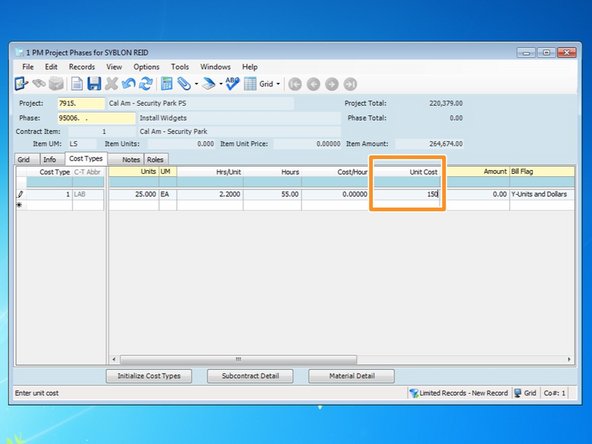
Input the "Cost/Hour", the "Unit Cost", or the total "Amount". A value in one field will automatically calculate the others.
-
-
-
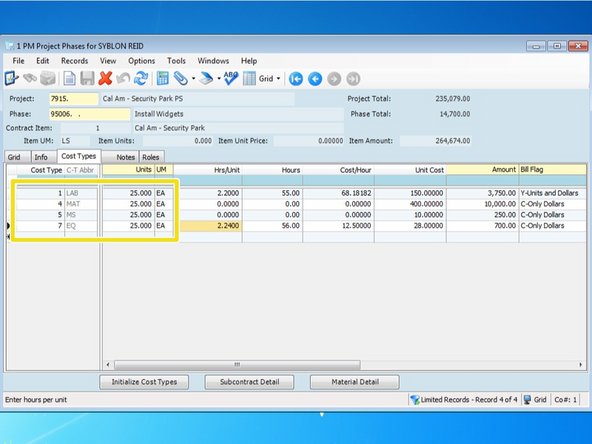
Input the values for all the remaining cost types that you will use for this phase code. You can always add more cost types later, if needed. For SRC equipment (cost type 7), you can also add in a value for hours so you can track that.
-
Be sure that all of your Units of Measure are the same for all cost types.
-
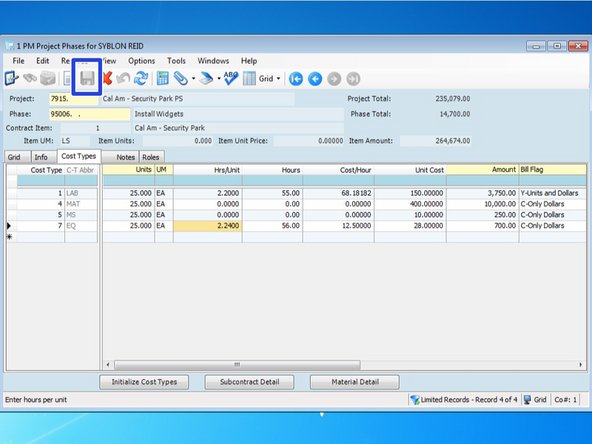
Once complete with the record, be sure to click on the Save icon.
-