-
-
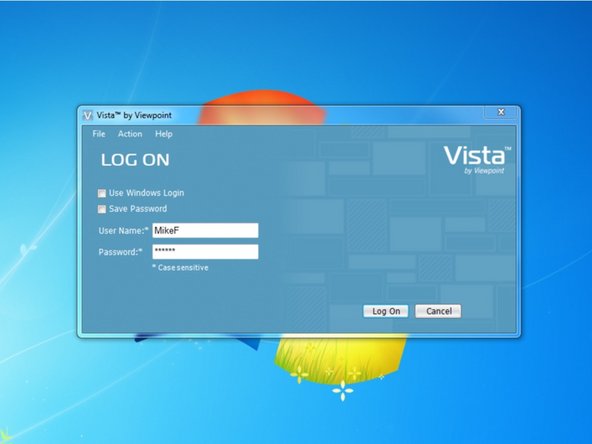
Log in to Viewpoint
-
-
-
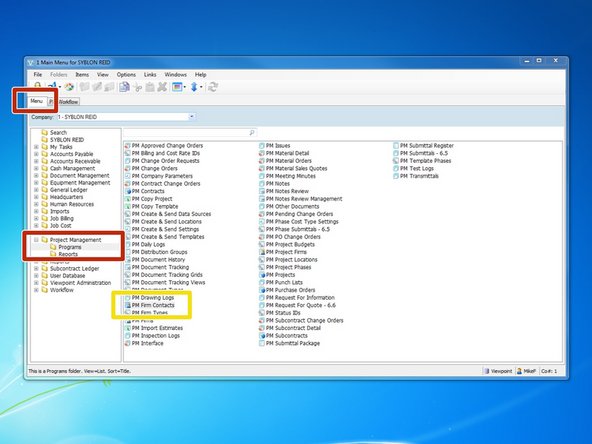
Select "Project Management" ==> "Programs"
-
Select "PM Firm Contacts"
-
-
-
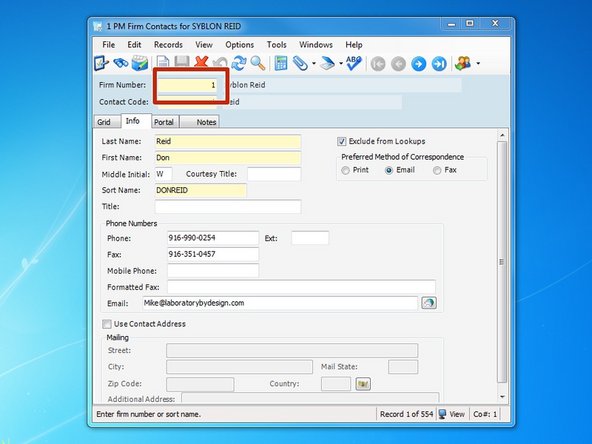
Place your cursor in the Firm Number and press the F4 key. The F4 key is a shortcut for Viewpoint's "Look-Up" feature and can be used throughout many programs.
-
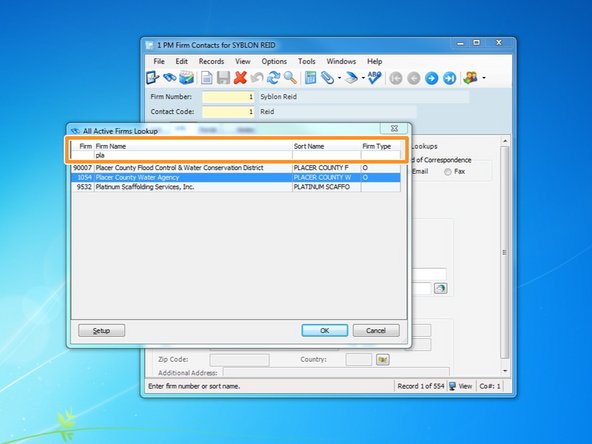
Narrow your results by typing in one of the "search" fields. Select the firm you want to add a contact to and click "OK".
-
If you do not see the firm, they have not yet been set up in Viewpoint's Project Management section. Most firms we work with are already set up in AP and AR and just need to be brought in to the PM module. To do this, contact your Viewpoint Administrator and ask them to create your firm within the PM Module.
-
-
-
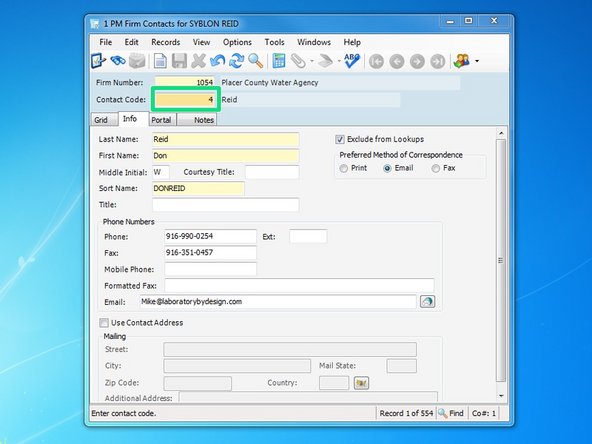
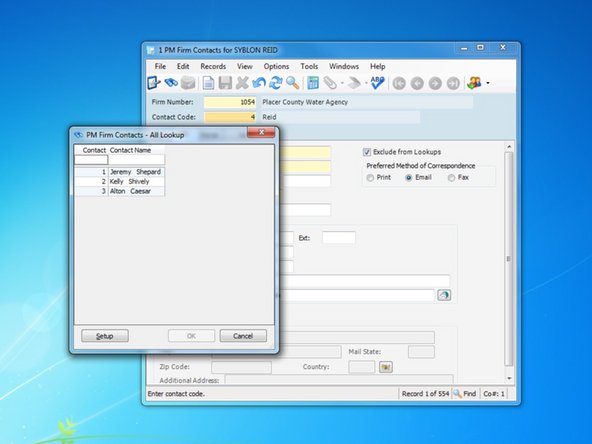
Viewpoint will automatically create the next number for the next contact code. Select the "Contact Code" and press the F4 key to make sure that your contact isn't already created.
-
If you do not see your contact listed yet, you can use the next available number
-
-
-
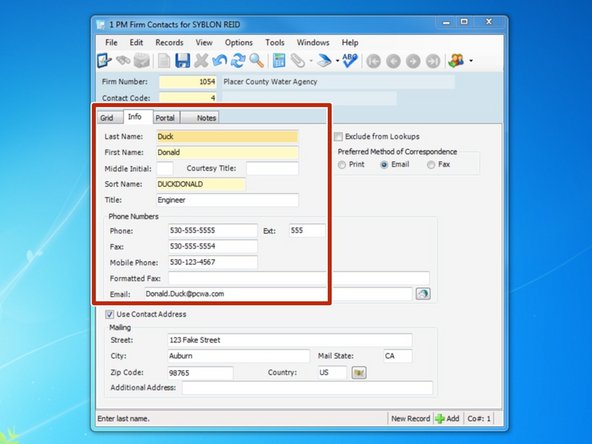
Fill in as much information as you can
-
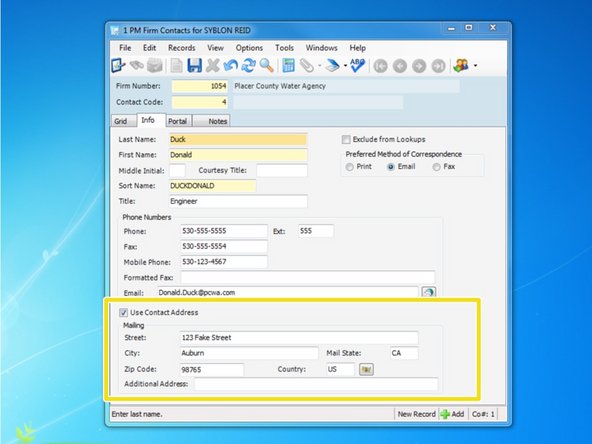
If the contact has a different address from the main company, such as a field office or secondary location, check the "Use Contact Address" box and input the contact's address
-
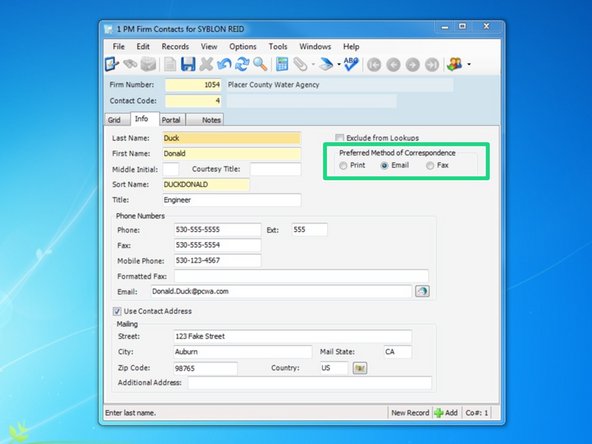
Check which method of correspondence the contact would prefer. If print is selected, when creating documents such as RFIs and Submittals, they will be sent to your default printer so you can deliver or mail. If Email is selected, documents will be sent to the contact through their email.
-
Once complete, click the save icon.
-
If a Contact is no longer associated with a Firm, check the "exclude from Lookups" box.
-
Any changes made to any contacts on this screen will adjust the information throughout Viewpoint, not just on your project.
-