Introduction
Once a year, pay rates are increased in Heavy Job. Rates are updated in the three Job Master files: Valley, Bay Area, and Zone. This guide will show you how to update active jobs
-
-
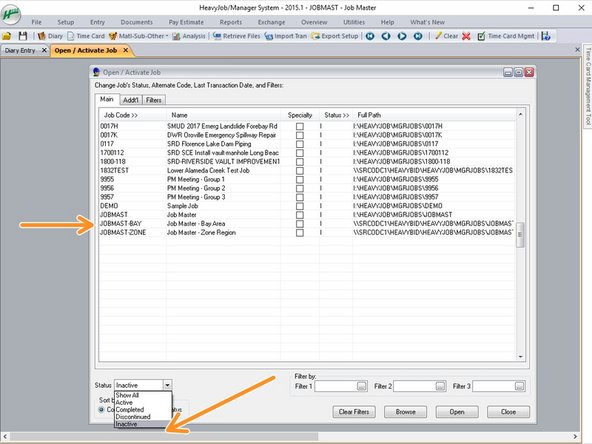
Once the rates in the three templates are updated, select the template that you want to use as the source job to change an active job. The three main templates are listed as having "Inactive" status.
-
If you select the main Job Master, It will alert you that it is the main template. It is just a reminder. Hit Ok.
-
-
-
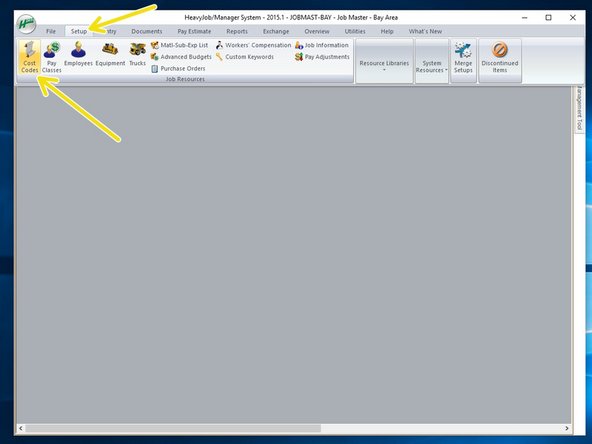
Select "SETUP" ==> "PAY CLASSES"
-
Verify the new pay classes are correct. Any changes made here will affect this template.
-
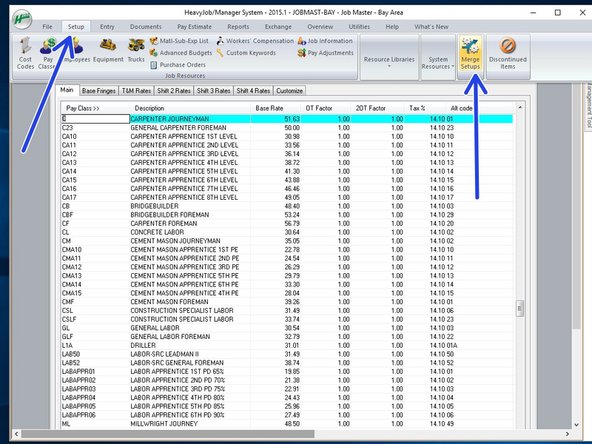
This is also where you need to go to change the rates. Be sure to change tabs "Main", "Base Fringes", "Shift 2 Rates".
-
-
-
From the "SETUP" tab, select "Merge Setups"
-
-
-
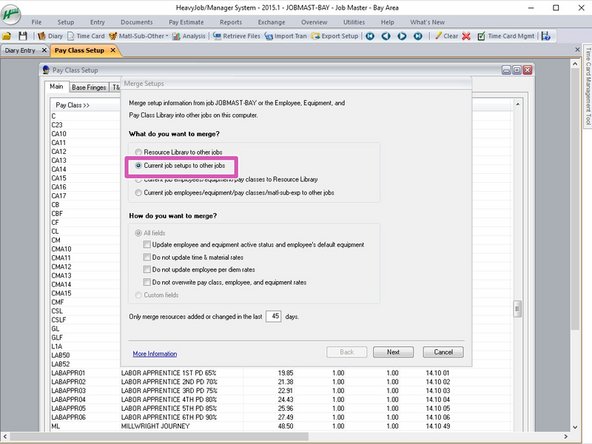
Select "Current job setups to other jobs". You will be merging the setups of the current job, to other jobs. Click next to move to next selection.
-
-
-
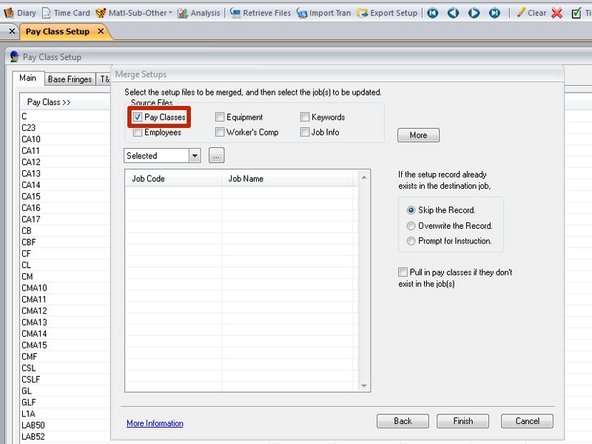
Select the information from the template job that you want to merge to the active job.
-
-
-
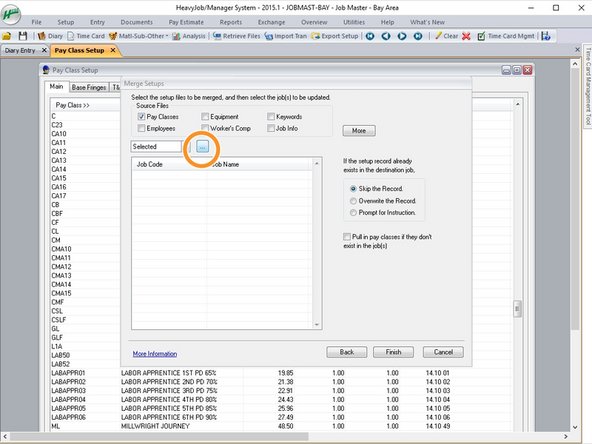
To select the jobs you want to merge to, first click the 3-dot box.
-
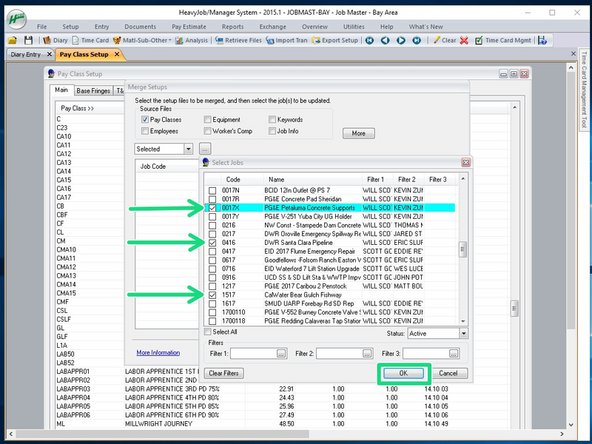
Select the jobs you want to merge to, and click "OK".
-
-
-
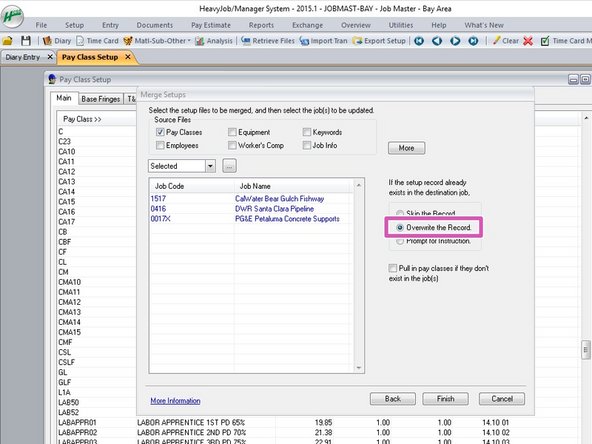
After selecting the files to merge, and the jobs to merge, you need to select "Overwrite the Record" in order to change the records that are already set up in the active project.
-
Click Finish.
-
-
-
Click on the project that you merged to. Verify that the "Pay Class" information was merged successfully.
-

Cancel: I did not complete this guide.
One other person completed this guide.
