Parts
No parts specified.
-
-
Make sure you are on the correct job.
-
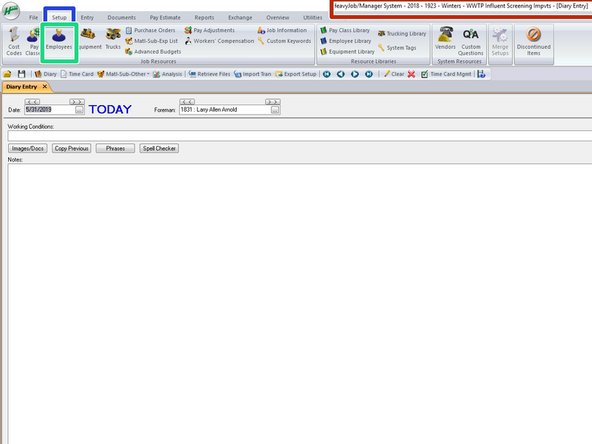
You will then click on the Setup.
-
Then click on Employees.
-
Setup is where you can update employees, Equipment, and Cost Codes. We do not add new employees or change pay classes her, only Kathy adds new employees, we just activate them in heavy job.
-
-
-
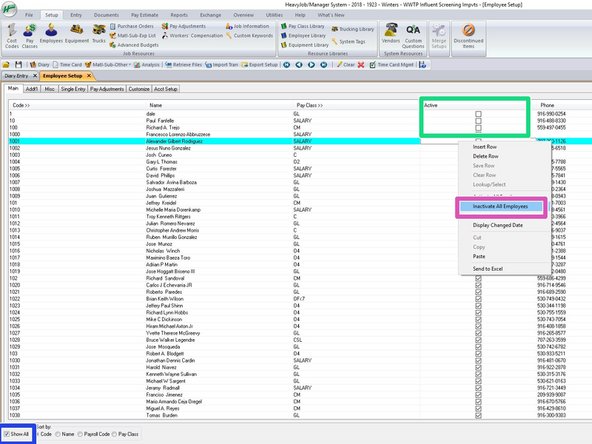
Make sure you have the Show All checked.
-
In the active column you can right click to see other actions.
-
Here you can Inactivate All Employees.
-
-
-
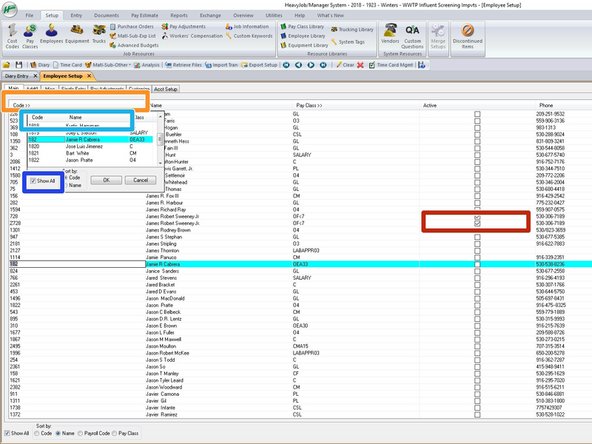
Make sure you are still showing all employees.
-
You can scroll down and up and find the employees that are on your project and activate them by clicking the activate button on each employee.
-
Search function, you can click on the Code>> Bar and it will pop up with a small window.
-
Make sure you are showing all in this window also.
-
Here you can click on Code or Name and just start typing the employees name or employees number and it will search for that employee.
-
-
-
Again, we do not add new employees, only Kathy does this, we can then activate them in Heavy Job on our Jobs, after they have done a new hire packet and it has been turned into the Office and they have been inputted properly into all the systems.
-
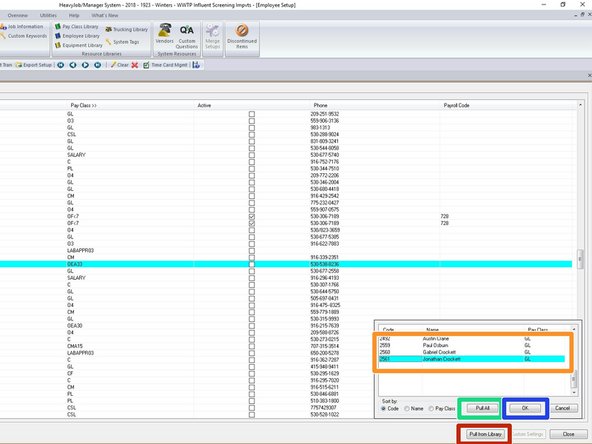
If you have a new hire that has been inputted, you will have to Pull from Library. Just click the pull from library at the bottom right side.
-
Here you can just scroll through and find the employee, once you find the employee your looking for, you can just double click them, it will automatically activate them on your project.
-
You also have the option to pull all, but this will automatically activate all that are in the Library currently.
-
Also, if the employee you need is highlighted, you can just click OK, and this will activate this employee only.
-
-
-
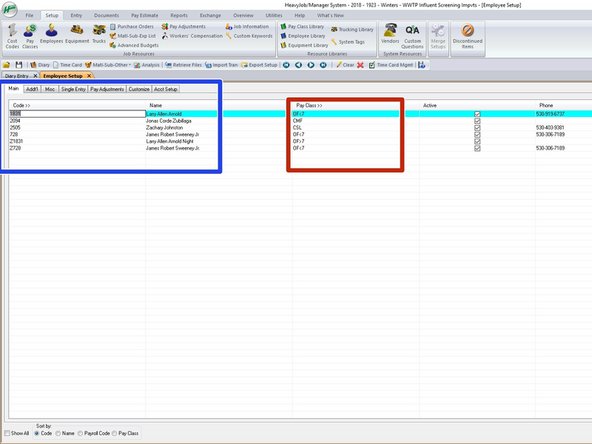
Here you can see just the activated employees on your job.
-
You can see who you have activated on you project here.
-
Make sure show all is not checked to see only the employees activated on you job.
-
If needed, to help the Foreman and yourself, you can change the employees Pay Class here to the accurate Pay Class, this will only change your jobs employees pay class, and then you wont have to double check to see if the Foreman forgot to change it everyday.
-
If you click on the employees pay class that needs to change, and then hit F4, it will give you a list to choose from, or you can just write it in if you know it.
-