-
-
Log in to Viewpoint
-
-
-
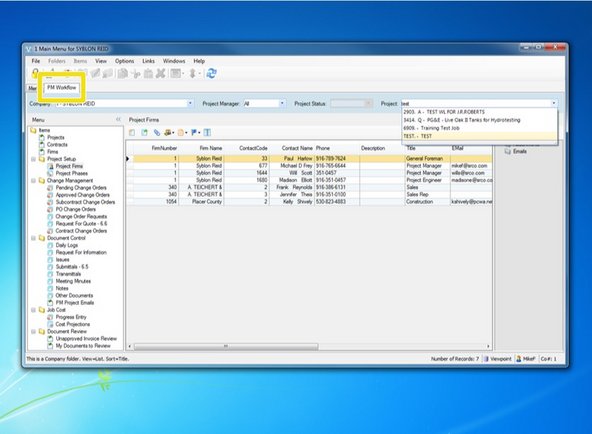
Select "PM Workflow" tab
-
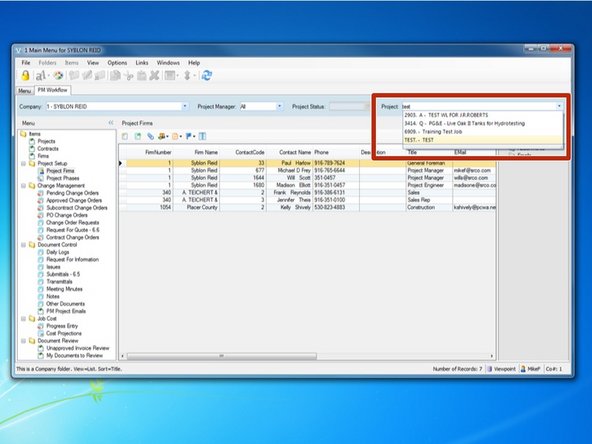
From the Project field, begin to type in your Job Number or Project Name. Select your project once it appears.
-
-
-
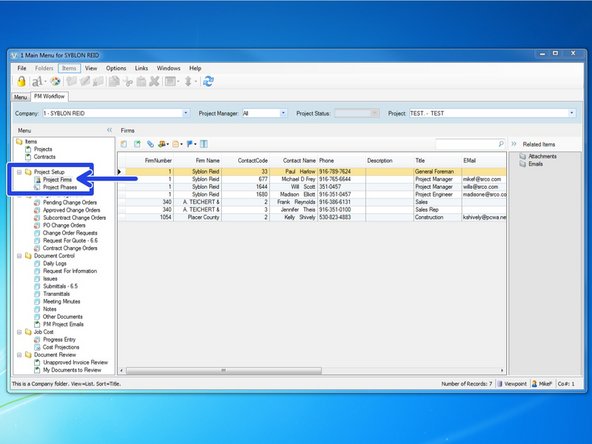
From the "Project Setup" folder, select the "Project Firms" program.
-
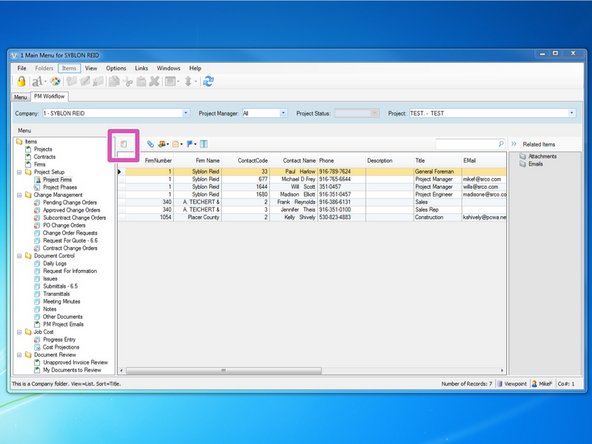
If you do not see your contact added to your project yet, select the "Create New Item" icon to add your contact.
-
-
-
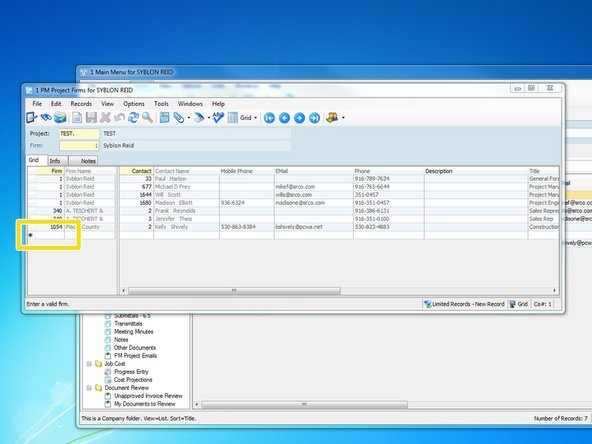
To add a new contact, you first need to select which Firm the Contact is in. At the bottom of the grid is a row marked with a * where new entries are added. Select the cell under the "Firm" column and hit the F4 key
-
The F4 key is a lookup function that Viewpoint uses throughout many programs to quickly access information related to that data field.
-
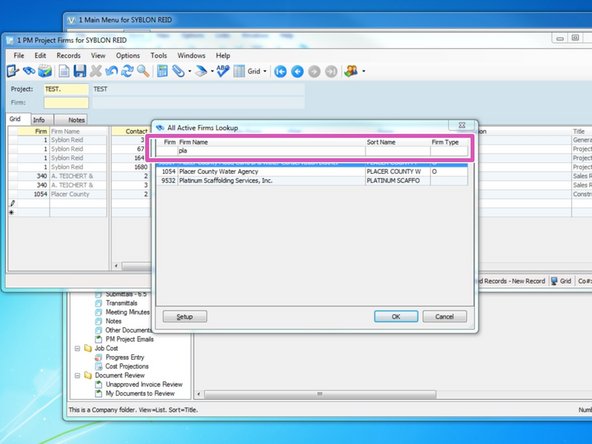
From the Lookup screen, begin typing the name of the firm in the search field and select the firm you wish to add to your Project Firm list.
-
If you do not see the Firm you wish to add in the Lookup screen, the firm has not yet been set up in Project Management. Contact the Administrator to add the Firm to Project Management. Many firms are already set up through Accounts Payable and need to be transferred in to Project Management. You will then need to Create Firm Contacts.
-
-
-
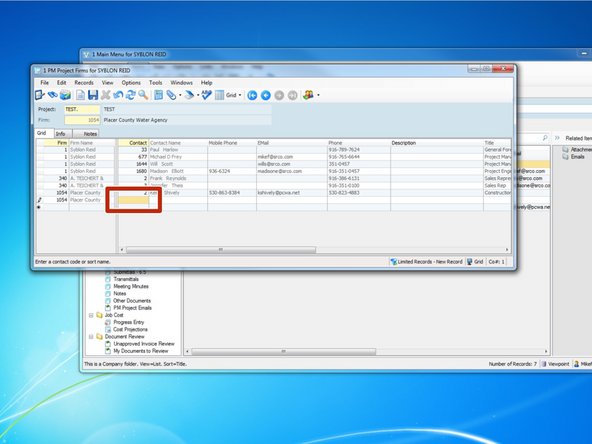
Once the firm is added, you need to add your contact be selecting the cell under the "contact" column and press the F4 key.
-
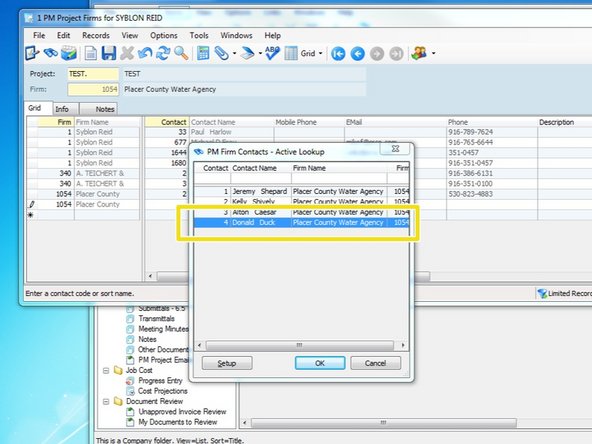
From the Lookup menu, select the contact you wish to add and press "OK".
-
If you do not see the Contact you wish to add listed as a Firm Contact, you will need to create the Firm Contact. To create contacts within a Firm see Creating Firm Contacts
-