Introduction
The PM workflow tab outlines the most commonly used Viewpoint tools for Project Managers. Adding the PM workflow tab is the first step for managing jobs in Viewpoint
Tools
Parts
No parts specified.
-
-
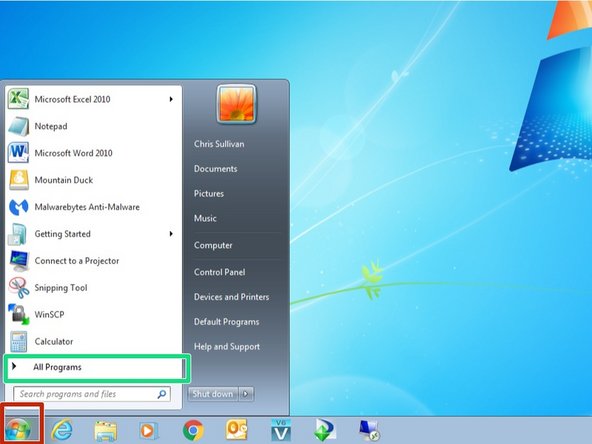
From your computer, click on the Start button in the lower left corner
-
Click on All Programs
-
-
-
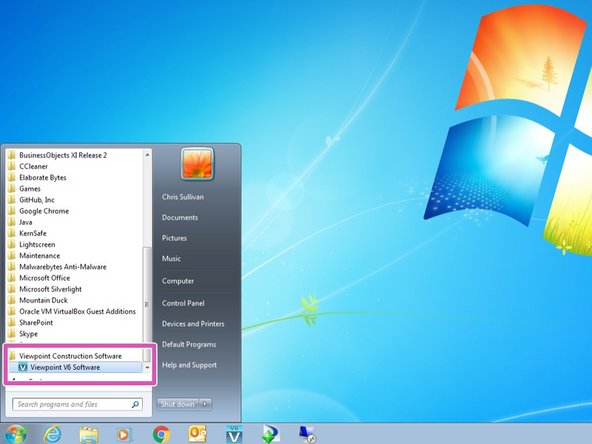
Scroll down the list of applications, open the Viewpoint Construction Software folder and double click on Viewpoint V6 Software
-
-
-
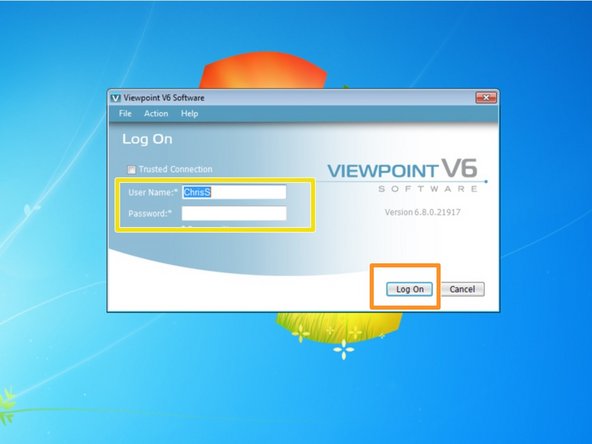
Wait for the Viewpoint login window to appear, then enter in your User Name and Password
-
Click Log On
-
If you do not know your Viewpoint User Name or Password, contact the IT department
-
-
-
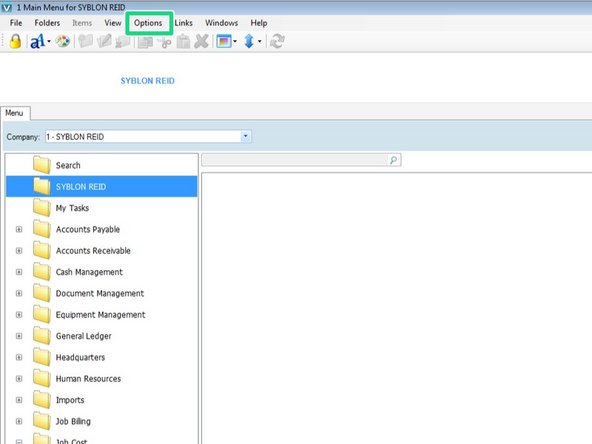
From the main Viewpoint window, click on Options in the menu bar
-
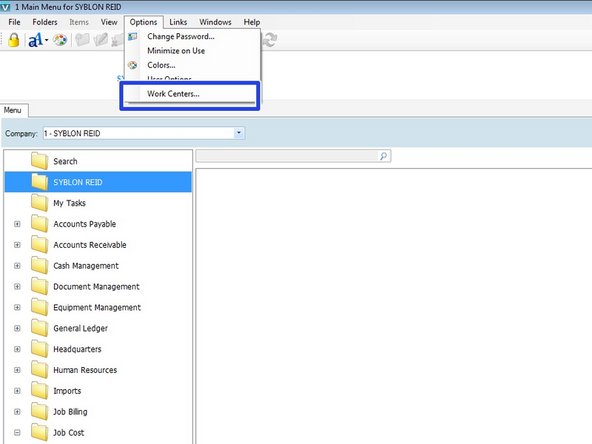
In the Options menu, click on Work Centers
-
-
-
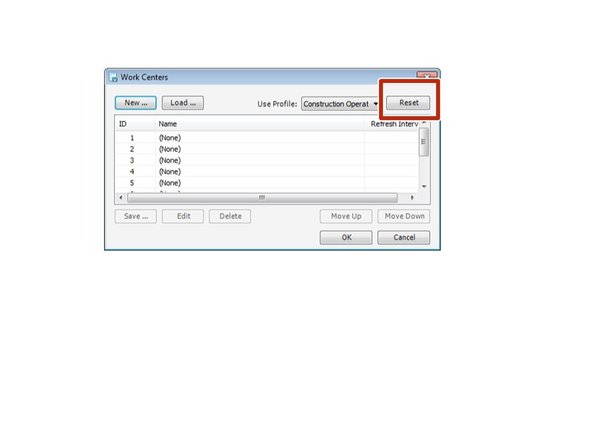
In the Work Centers window, click the Reset button
-
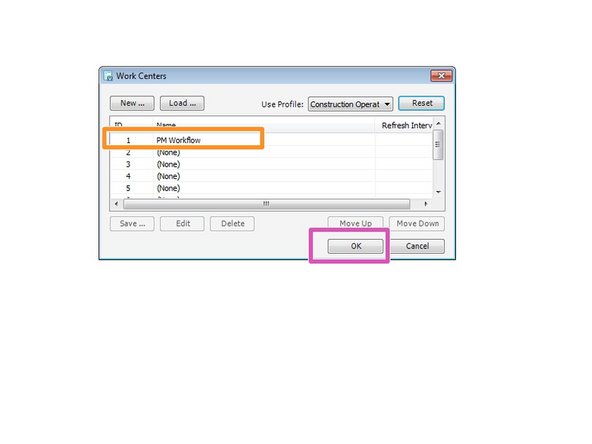
You will now see PM workflow listed in the Work Centers list
-
Click OK
-
-
-
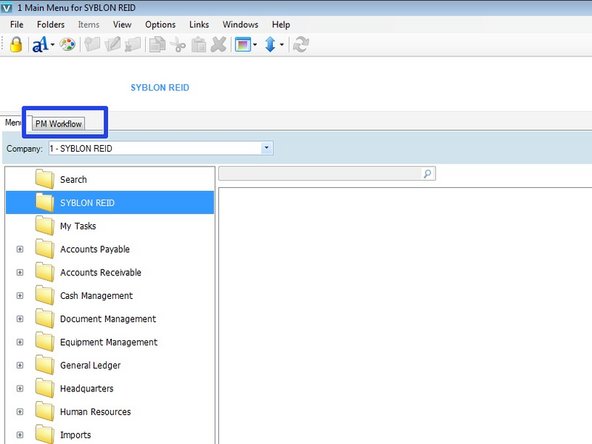
You should now see the PM Workflow tab in the main Viewpoint window
-
Cancel: I did not complete this guide.
One other person completed this guide.

